If your Blink Sync Module not connecting to TP-Link Deco, the problem is usually related to the WiFi band, network settings, signal strength, app permissions or the setup process.
Because Blink devices require a 2.4 GHz WiFi connection, some mesh WiFi configurations can make setup confusing even when other devices in your home connect normally.
The good news is that you usually don’t need to replace your Deco system or Blink Sync Module. A few checks can help you classify where the connection is failing.
Quick Answer
If your Blink Sync Module not connecting to TP-Link Deco, make sure your Deco provides a working 2.4 GHz network, your phone has the required Blink app permissions and the Sync Module is close enough to the Deco during setup.
If setup still fails, restart the Deco and Sync Module, temporarily disable your VPN, update the apps and run the Sync Module setup again through the Blink app.
Quick Checks Before Troubleshooting the Blink Sync Module
Before changing your Deco settings, check these basics:
- Your Blink account is working.
- The latest Blink Home Monitor app is installed.
- Your phone has WiFi, Bluetooth and location permissions where required by the app and operating system.
- The Sync Module is connected to power.
- Your Deco network has a 2.4 GHz WiFi connection.
- You know the correct Deco WiFi password.
- Your internet connection is working.
- Your phone is connected to the same home network you are trying to configure.
- Any VPN on your phone is temporarily disabled.
Blink currently requires a 2.4 GHz WiFi network and recommends keeping the Blink app and device operating system up to date. It also specifically advises disabling VPNs when troubleshooting app or setup problems.
Does Blink Sync Module Work With TP-Link Deco Mesh WiFi?
Yes. A Blink Sync Module can work with a TP-Link Deco mesh WiFi network as long as the network meets Blink’s requirements.
The significant point is that Blink devices use 2.4 GHz WiFi. They do not connect to a 5 GHz-only network. Blink lists 2.4 GHz 802.11b/g/n WiFi and DHCP as network requirements.
So, the fact that your phone or laptop connects successfully to a fast 5 GHz Deco network does not mean the Sync Module will be able to use that same band.
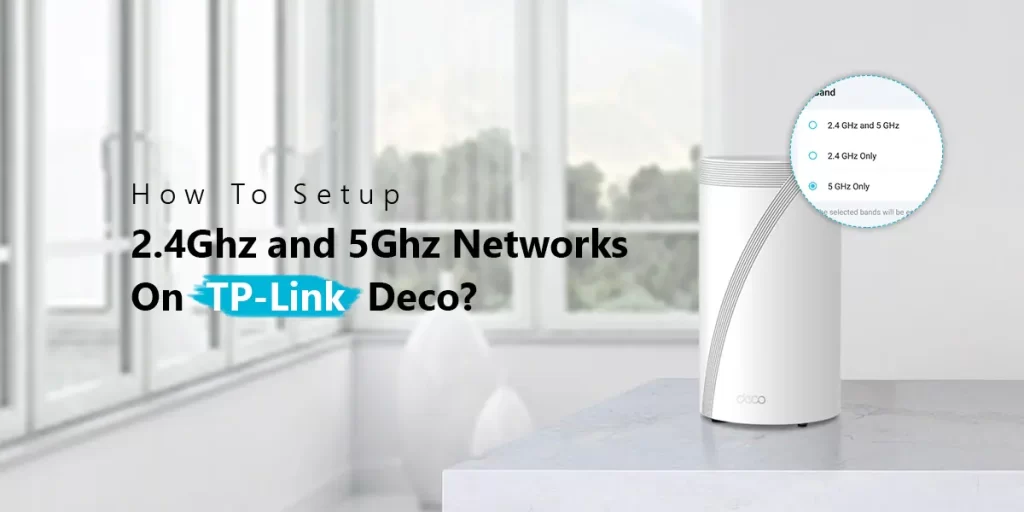
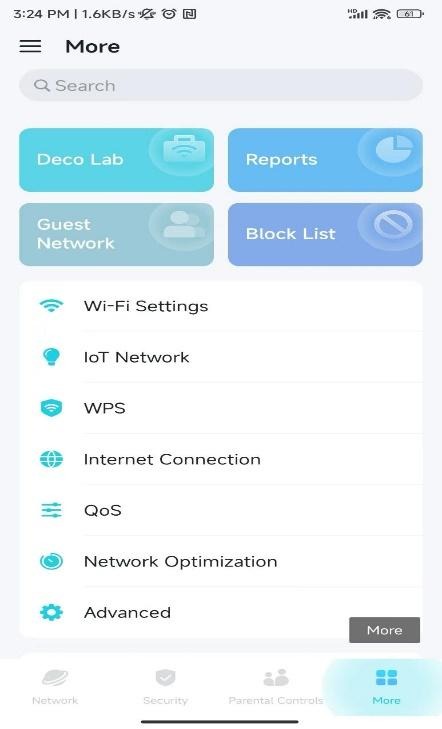
Depending on your Deco model and firmware, TP-Link may also provide an IoT network that can be configured for 2.4 GHz devices. However, available Deco features vary by model and software version.
Why Is My Blink Sync Module Not Connecting to TP-Link Deco?
There are several possible reasons for a Blink Sync Module Deco WiFi problem.
The 2.4 GHz WiFi Connection Is Not Available
This is one of the first things to check. Blink devices require 2.4 GHz WiFi. If your Deco setup is configured in a way that prevents the Sync Module from seeing or joining a compatible 2.4 GHz network, setup can fail.
If your Deco app provides an IoT network option, you may be able to create a dedicated 2.4 GHz network for smart-home devices. The exact menu and options depend on your Deco model and firmware.
Weak Signal Between the Sync Module and Deco
The Sync Module needs a stable WiFi connection to communicate with Blink servers and the cameras it manages.
During setup, temporarily place the Sync Module close to the main Deco. Avoid putting it inside a cabinet, behind large objects or near sources of intrusion.
Once setup is complete, you can move it to a more suitable location and check its connection again.
Blink App Permissions Are Blocking Setup
The Blink app needs to communicate with your phone and the Sync Module during setup.
If the app cannot access the permissions it needs, the discovery process may fail or the local WiFi connection may not complete correctly.
Check the Blink app permissions in your phone’s settings and make sure the app is permitted to use the required network and device-related permissions.
Deco or Blink Firmware Is Outdated
An outdated Blink app, phone operating system or Deco firmware can cause compatibility or setup problems.
Before troubleshooting further, update the Blink app and check the Deco app for available firmware updates.
Don’t assume an update will fix every connection problem, but it removes an avoidable software-related cause.
VPN Is Interfering With Setup
A VPN can interfere with the communication required during Blink setup.
If a VPN is enabled on your phone, turn it off temporarily and try setting up the Sync Module again.
Blink specifically recommends disabling VPNs when troubleshooting problems with the Blink app and device setup.
How to Connect Blink Sync Module to TP-Link Deco
Once the basic checks are complete, try a fresh setup.
Step 1: Place the Sync Module Near the Main Deco
For the initial setup, plug the Sync Module into a power outlet close to your main Deco unit.
This isn’t necessarily its final location. It simply makes it easier to rule out weak WiFi signal as a setup problem.
Step 2: Open the Blink Home Monitor App
Open the Blink app and sign in to your Blink account.
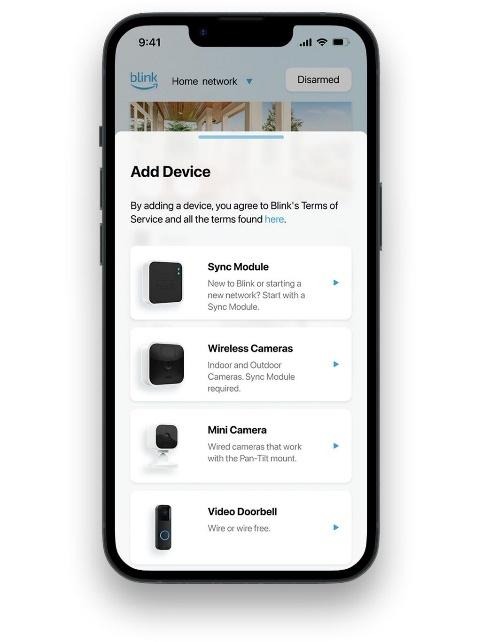
From the Home screen, tap the + icon and select Sync Module.
For Sync Module 2, Blink’s current setup instructions then ask you to scan the QR code on the back of the device or enter the serial number manually.
Step 3: Wait for the Correct LED Pattern
The Sync Module should display the required setup light pattern.
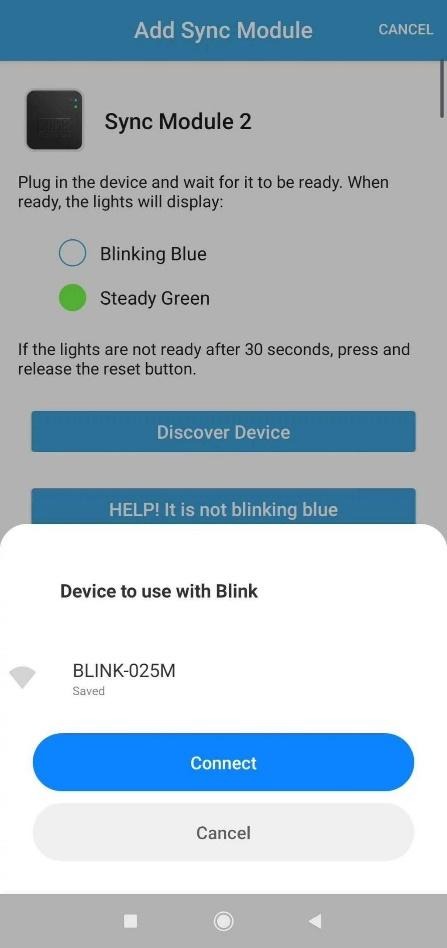
For Sync Module 2, Blink’s setup instructions specify a blinking blue and solid green pattern before selecting Discover Device.
If the lights do not match the predictable pattern, don’t keep retrying the WiFi password. The Sync Module may need to be reset or checked before continuing.
Step 4: Connect to the Temporary Blink Network
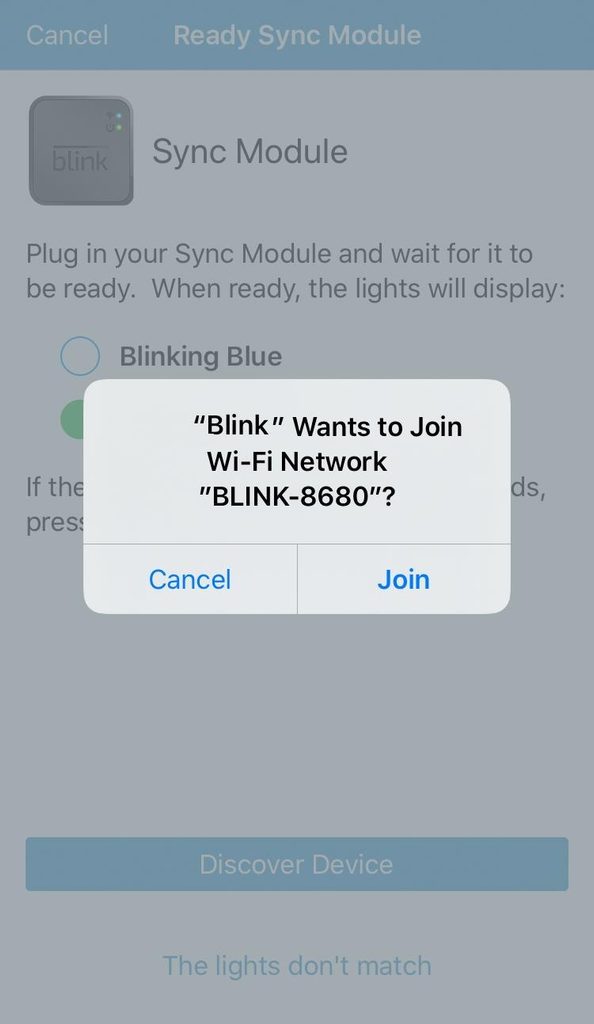
During setup, the Blink app asks your phone to connect to a temporary WiFi network named something similar to:
BLINK-xxxx
The last four characters correspond to part of the Sync Module’s serial number.
Allow the phone to join this temporary network when prompted.
Step 5: Select Your TP-Link Deco Network
The Blink app should then show available WiFi networks.
Select your compatible 2.4 GHz Deco network and enter the correct WiFi password.
If your network does not appear, use the refresh option in the Blink app and check that the Sync Module is close enough to the Deco.
Step 6: Finish the Setup
Wait while the Blink app communicates with the Sync Module and completes the connection.
Blink notes that the Sync Module may perform a firmware update during setup, so allow the process to finish rather than unplugging the device.
When the app confirms that the Sync Module has been added to your system, tap Done.
Blink Sync Module Connects to Deco but Goes Offline
This is a different problem from failing during initial setup. If the Sync Module connects successfully but later goes offline, check the following:
- Move the Sync Module closer to the Deco.
- Check whether other devices are also losing WiFi.
- Restart the Deco and Sync Module.
- Check your internet connection.
- Confirm that the Deco network is still available on 2.4 GHz.
- Check the Sync Module’s connection in the Blink app.
- Update the Blink app and Deco firmware if updates are available.
Blink describes the Sync Module as the hub between the Blink app, Blink servers and the cameras it manages, so a stable internet connection is important.
If the Sync Module remains offline while other devices on the same Deco network work normally, focus on the Sync Module’s WiFi connection rather than assuming the entire Deco system is down.
What If the Blink Sync Module Still Won’t Connect?
If you still have a Blink not connecting to TP-Link Deco problem, try these steps in order:
| Troubleshooting Step | What It Checks |
| Move Sync Module near main Deco | Rules out weak WiFi signal |
| Confirm 2.4 GHz WiFi | Checks Blink compatibility |
| Restart Deco | Clears temporary mesh issues |
| Restart Sync Module | Refreshes the device connection |
| Update Blink app | Removes app-related compatibility issues |
| Update Deco firmware | Removes outdated router software |
| Disable VPN | Prevents setup communication conflicts |
| Check app permissions | Allows the Blink app to complete setup |
| Re-enter WiFi password | Rules out incorrect credentials |
| Reset and repeat setup | Starts the Sync Module setup process again |
Don’t change several Deco settings at the same time. Work through the list one step at a time so you can classify what actually fixes the connection.
Can a Deco IoT Network Help?
If your Deco model supports an IoT Network, it can be useful for smart-home devices.
TP-Link’s current Deco documentation shows that supported models can create a dedicated IoT network and select the preferred WiFi band, including 2.4 GHz-only operation. However, these options vary between Deco models, firmware versions and regions.
For a Blink Sync Module, the key requirement remains a compatible 2.4 GHz network.
If your main Deco network already provides a reliable 2.4 GHz connection, creating a separate IoT network isn’t necessarily required.
How to Update Blink Sync Module WiFi Settings
If your Sync Module was previously connected to another router or WiFi network, you don’t necessarily need to remove the entire Blink system.
Blink provides a Change Wi-Fi Network process inside the Blink app.
From the Blink Home screen, select the Sync Module and choose Change Wi-Fi Network. The app then guides you through putting the Sync Module into setup mode and selecting the new WiFi network.
This is particularly useful when you’ve replaced an old router with a TP-Link Deco system.
When Should You Contact Blink or TP-Link Support?
Contact Blink Support when:
- The Sync Module repeatedly fails during Blink setup.
- The Sync Module cannot discover compatible WiFi networks.
- The device shows an unexpected LED pattern.
- The Sync Module goes offline while other devices remain connected.
- The Blink app reports a device-specific error.
Contact TP-Link Support when:
- Other 2.4 GHz devices also cannot connect to Deco.
- Your Deco network is dropping connections.
- The Deco app reports a hardware or firmware problem.
- The 2.4 GHz network is not behaving normally.
- Other smart-home devices have the same connection problem.
This distinction can save time. If phones, laptops and other smart-home devices work normally on Deco but only the Blink Sync Module fails, start with Blink-specific troubleshooting.
FAQs
Can Blink Sync Module connect to TP-Link Deco?
Yes. Blink Sync Module can connect to a TP-Link Deco mesh network when the Deco provides a compatible 2.4 GHz WiFi connection. During setup, keep the Sync Module close to the main Deco and follow the setup process in the Blink Home Monitor app.
Why is my Blink Sync Module not connecting to Deco WiFi?
The most common causes include an unavailable 2.4 GHz connection, incorrect WiFi credentials, weak signal, app permission issues, outdated software or VPN interference. Start by moving the Sync Module near the main Deco and checking that your phone can access the Blink app properly.
Does Blink Sync Module work with 5 GHz WiFi?
No. Blink devices require a compatible 2.4 GHz WiFi network for connection. If your Deco setup is using a configuration where the Sync Module cannot access 2.4 GHz, setup may fail. Check your Deco model and WiFi settings to confirm that 2.4 GHz is available.
Why does my Blink Sync Module connect to Deco but keep going offline?
If the Sync Module connects initially but later goes offline, check its distance from the Deco, internet stability and WiFi signal. Restart both devices and make sure the Blink app and Deco firmware are updated. Other devices working normally can help isolate the issue.
Can I use a TP-Link Deco IoT network for Blink Sync Module?
If your Deco model supports an IoT network with 2.4 GHz WiFi, it can be an option for connecting smart-home devices such as a Blink Sync Module. However, a separate IoT network is not required if your regular Deco network already provides a stable compatible 2.4 GHz connection.
Final Thoughts
A Blink Sync Module not connecting to TP-Link Deco doesn’t necessarily mean the two systems are incompatible. In most cases, start with the basics: confirm that the Deco provides a working 2.4 GHz WiFi network, place the Sync Module near the main Deco, check Blink app permissions, disable any VPN temporarily and repeat the setup process prudently.
If the Sync Module connects but later goes offline, focus on signal strength, network stability and the Sync Module’s WiFi settings. The most important thing is to troubleshoot one variable at a time. Once you know whether the problem is the 2.4 GHz network, WiFi signal, Blink app or Deco configuration, the solution becomes much easier to find.