
Seeing a deco node offline alert can be frustrating, especially when the rest of your TP-Link Deco system is working perfectly. One node suddenly disconnects, devices lose coverage, and the Deco app may show confusing status messages. The good news is that most single-node issues are caused by signal, placement, firmware, or network settings rather than hardware failure. In this guide, you’ll learn why a deco unit keeps disconnecting, how to identify the exact cause, and the best ways to get your mesh network running smoothly again.
Reboot the affected node, update all Deco units, move the node closer to the main Deco, and check backhaul connectivity to restore a stable connection. A deco node offline issue is usually caused by a weak backhaul signal, outdated firmware, incorrect network settings, or poor node placement.
Note: We have seen this issue across several TP-Link models, including the Deco X55, Deco X60, and Deco XE75. In most cases, the problem was related to placement, backhaul signal quality, or firmware inconsistencies rather than a defective device.
Is It Really Offline? (App vs. Reality Check)
First, Confirm the Deco Node Is Actually Offline
Before trying any fixes, confirm that the node is truly offline. In some cases, the Deco app may show an offline status even though the node is still working normally.
Even though the network is still operational, many users see an offline warning.
The App Shows Offline But Internet Still Works
The TP-Link Deco app occasionally doesn’t refresh properly.
While it is still passing traffic, the node could appear to be unavailable.
Consider this:
- Are gadgets in the vicinity connected?
- Does that room have internet access?
- Did the problem start as soon as you opened the app?
This is generally resolved with a simple app refresh. This is particularly typical following firmware upgrades.
Some users claim that even when devices are still linked through that node, a deco unit does not appear in the app.
Note: Have you noticed that devices near the node still have internet access even though the app shows it as offline? If yes, the issue may be related to app synchronization rather than an actual network failure. Refreshing the Deco app or signing out and back in can sometimes resolve the incorrect status.
How to Confirm a Node Is Genuinely Offline
Verify three items:
- The node’s LED color
- Nearby device connectivity
- Node status within the Deco application
LED Lights and Their Meaning
| LED Status | What It Means |
| Solid Green | Node is working normally |
| Solid White | Setup completed and connected |
| Blinking Blue | Ready for setup |
| Blinking Yellow | Starting up |
| Solid Red | Node lost connection |
| Flashing Red | Serious connection issue |
Comprehending the meaning of the TP-Link Deco LED red light aids in rapidly identifying the issue.
The node is actually down if the LED is red and adjacent devices are unable to access the internet.
Why Is One Deco Node Going Offline?
Common Reasons a Single Deco Node Keeps Disconnecting
When a single node disconnects, the issue is typically specific to that unit.
Weak Backhaul Signal (Most Common Cause)
This is the main cause of a deco mesh node losing connectivity. Every satellite node needs to talk to other Deco units. We refer to this type of communication as backhaul. The node may repeatedly disconnect if the signal is weakened by walls, floors, or distance.
Typical reasons consist of:
- Concrete walls that are thick
- surfaces made of metal
- Big pieces of furniture
- Several floors
- Extended separations between nodes
- Instability is caused by weak node-to-node signals.
Weak backhaul is subsequently shown to be the primary source of many users’ deco satellite node offline problems.
Note: In our experience, weak backhaul connectivity is the most common reason a single Deco node goes offline. We have seen many cases where simply moving the node 10–15 feet closer to another Deco unit restored a stable connection. Before changing advanced settings, always test the node in a closer location.
Outdated Firmware on That Node
An outdated firmware version on one node can cause connection problems and random disconnects.
Examples consist of:
- Unpredictable disconnections
- Errors in offline status
- Slow traveling
- Instability in backhaul
Only one node may be impacted by a router firmware upgrade mesh problem. For this reason, the firmware version should be the same on every device.
Power or Hardware Issue
More issues arise from loose adapters than most people realize.
I once checked a client’s network settings for almost an hour.
The real problem?
There was some damage to a power strip switch. Every few hours, the node restarted at random.
Verify:
- Power strip
- Power adapter
- Outlet
- Extension board
IP Address or DNS Conflict
In mesh network configurations, an IP address disagreement may cause nodes to momentarily vanish. The same holds true for improper DNS configurations. Node communication and management traffic may become confused as a result.
Node Connected to Wrong Parent
Modern Deco systems automatically choose the best connection path between nodes. Rather than a stronger neighboring node, a node may occasionally connect through a weaker parent node. This can cause the node to disconnect repeatedly or appear offline in the Deco app.
The outcome?
Even when the signal appears strong, the node may still connect through a weaker parent and disconnect repeatedly.
- Did the problem start after moving a Deco unit or rearranging furniture?
Changes in your home layout can sometimes affect how nodes connect to each other.
How to Fix a TP-Link Deco Node That Keeps Disconnecting — Quick Fixes
Start with these simple fixes. Many users resolve the issue in a matter of minutes.
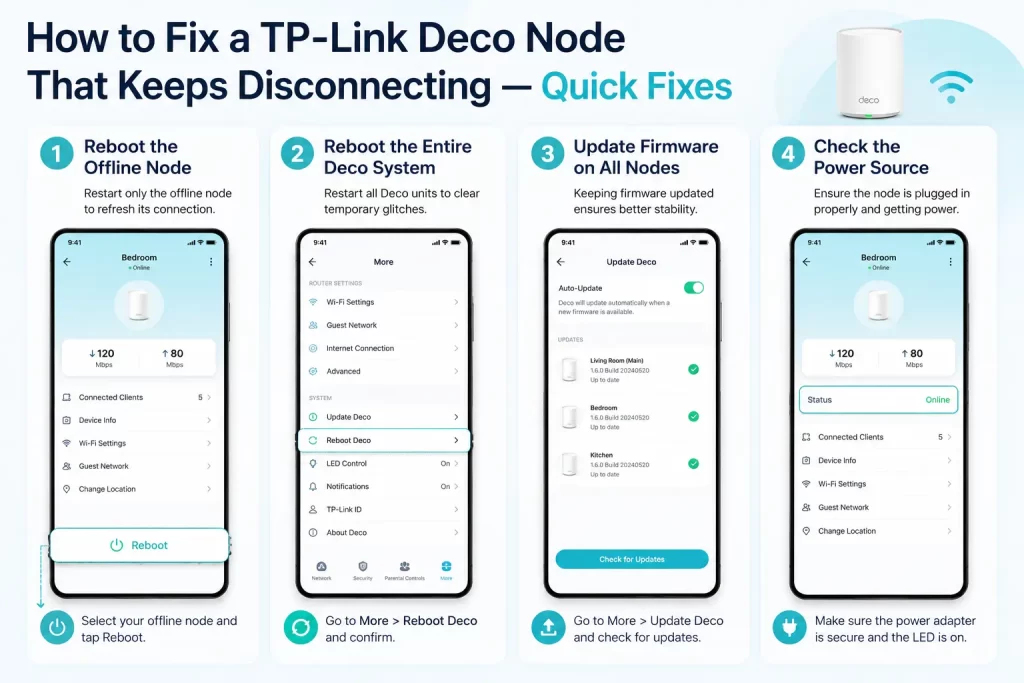
Step 1 — Reboot the Offline Node
- Unplug the Deco that is impacted.
- Hold off for sixty seconds.
- Re-plug it.
- Give yourself three to five minutes to reconnect.
This fixes temporary software bugs. This should always be your first approach if you’re looking for a means to fix a deco node that keeps going offline.
Step 2 — Reboot the Entire Deco System.
Observe this sequence:
- Primary Deco is first, followed by secondary nodes.
- Hold off until every LED has stabilized.
- Mesh routes and backhaul connections are rebuilt as a result.
Step 3 — Update Firmware on All Nodes
Launch the Deco application.
Visit:
- More → Deco Update
- Install updates on each node.
- When one node upgrades successfully but another does not, a deco offline after firmware update problem may occasionally arise.
- Verify that every node is using the same version.
For specific instructions, you can also see your internal Deco firmware update guide.
- Did the issue start after adding a new Deco unit to your network?
Sometimes newly added nodes require a firmware update before they can communicate properly with existing units.
Note: Did the problem start shortly after a firmware update? If so, check whether every Deco unit is running the same firmware version. A mismatch between nodes can occasionally cause communication issues and unstable mesh performance.
Step 4 — Check the Power Source
Try a different source. Steer clear of overloaded extension boards. Whenever feasible, use the original TP-Link power adapter.
The problem could not be network-related at all if the node functions perfectly in another outlet.
Deco Node Still Offline? Fix the Placement and Backhaul Signal
If restarting didn’t work, concentrate on placement.
Note: Recently, I helped a Deco XE75 user whose garage node went offline every evening. After testing the setup, we discovered that a concrete wall and a metal storage cabinet were weakening the backhaul signal. Moving the node a few feet away from the obstruction completely solved the issue.
The 2-Room / 30-Foot Rule for Node Spacing
A useful rule of thumb:
Put nodes inside:
- Two rooms next to each other
- About thirty feet apart
- The materials of the walls determine the precise distance.
- Mesh Wi-Fi network stability is greatly increased by this straightforward guideline.
Move the Offline Node Closer (Temporarily)
The node should be moved halfway to the main Deco.
- Give it ten minutes.
- Is it able to reconnect?
- If so, the issue is probably being caused by a weak signal.
This test rapidly verifies problems with wireless backhaul interference.
Use Node Source Selection (Newer Firmware Feature)
Source selection is possible with more recent firmware versions. This enables a node to establish a connection via a more powerful parent. You select a better connection path by hand rather than depending on automatic routing.
This frequently resolves the issue of a tp-link deco single node not working.
Consider Ethernet Backhaul
The most dependable choice is Ethernet.
Wireless interference is totally eliminated with an Ethernet backhaul Deco configuration.
Advantages consist of:
- Increased stability
- Quicker speeds
- Reduced latency
- Improved communication between nodes
When wireless backhaul becomes unstable, many Deco X55, X60, and XE75 users move to Ethernet.
- Is your Deco node located behind a TV cabinet, inside a closet, or near large metal objects?
These obstacles can weaken the backhaul signal and cause frequent disconnects.
Note: A common mistake is placing a Deco node in a Wi-Fi dead zone. The node needs a strong signal from another Deco unit before it can extend coverage to other areas. If the source signal is weak, the node may repeatedly disconnect or show as offline.
Deco Node Shows Offline in App — Software & Settings Fixes
Change DNS Settings
Sometimes management communication is impacted by incorrect DNS settings.
Try using Google’s public DNS servers:
- 8.8.8.8
- 8.8.4.4
You can also try Cloudflare DNS:
- 1.1.1.1
- 1.0.0.1
Examine the DNS server configuration.
Also check Deco setup & installation following modifications.
Check IP Assignment
Search for:
- IP addresses that are identical
- DHCP disputes
- IP overlap that is static
On mesh network systems, an IP address conflict may result in sporadic offline events.
Disable VPN or Parental Controls Temporarily
Mesh communication can occasionally be hampered by VPN providers. Routing problems can also occasionally be caused by parental control filters.
- Turn them off for a short while.
- Next, keep an eye on the node.
Use Signal Selection to Re-anchor Devices
Certain devices cling to far-off nodes.
- This adds needless strain.
- Make use of the signal optimization features found in the most recent Deco firmware.
This facilitates device connections to the appropriate node.
How to Factory Reset a Single TP-Link Deco Node (Without Resetting Your Whole Network)
Reset just the impacted node if all earlier fixes don’t work.
Procedure:
- Maintain the node’s power.
- Hold down the Reset button.
- Hold for ten seconds or so.
- Watch for the blue flash of the LED.
- Launch the Deco application.
- Re-add the node.
This is a mesh node reboot versus reset scenario.
- Rebooting preserves settings.
- They are eliminated by a reset.
- Reset should only be used when absolutely necessary.
Consult your Deco factory reset guide for comprehensive instructions.
Rejoin the node by following your Deco setup procedure after the reset.
Does Continuous Deco disconnection suggest hardware failure?
Hardware malfunctions occasionally.
Potential indicators:
- Red LEDs frequently
- Rebooting at random
- Heating up too much
- Node declines to be set up
- The node constantly vanishes
- Test the device next to the main Deco.
Hardware failure is more likely if it continues to disconnect while other nodes function normally.
This is applicable to:
- Offline Deco X55 node
- Offline Deco X60 node
- Offline Deco XE75 node
Get in touch with TP-Link support if the equipment is still covered under warranty.
FAQs
Why does my Deco node keep going offline randomly?
A deco node offline issue is usually caused by a weak backhaul connection, outdated firmware, power interruptions, or wireless interference. In many homes, the node is simply placed too far from the main Deco unit, causing unstable communication and random disconnections throughout the day.
Can I fix just one Deco node without resetting my whole network?
Yes. You can troubleshoot a single Deco unit without affecting the rest of your mesh network. Try rebooting the node, updating its firmware, checking its placement, or performing a factory reset on that unit only. The main network and other nodes can remain unchanged.
Why does the Deco app show a node as offline when internet still works?
Sometimes the Deco app displays an offline status even though the node is still functioning correctly. This can happen because of app synchronization delays, temporary communication issues between nodes, or firmware-related bugs that prevent the app from updating the node status properly.
What does a red LED mean on a TP-Link Deco?
The TP-Link Deco LED red light meaning is usually that the node has lost its connection to the mesh network or cannot reach the internet. A red light may appear because of weak signal strength, incorrect settings, cable issues, or temporary network outages.
Does updating Deco firmware cause nodes to go offline?
Yes, it can happen occasionally. A deco offline after firmware update issue may occur when one node fails to complete the update, remains on an older firmware version, or experiences synchronization problems. Ensuring all Deco units run the same firmware version usually resolves the problem.
Note: If you are wondering whether the node itself is faulty, test it near the main Deco unit for a few hours. If it stays connected in that location but goes offline elsewhere, the issue is likely signal-related rather than a hardware failure.
CONCLUSION
In most cases, a deco node offline issue is caused by weak backhaul connectivity, poor placement, or outdated firmware rather than a faulty device. Start with the simple fixes first, such as rebooting the node, updating firmware, and improving placement. If the node stays connected near the main Deco but disconnects in its original location, signal strength is likely the problem. Once the underlying issue is fixed, your TP-Link Deco system should provide stable and reliable whole-home Wi-Fi coverage.