If your Deco ethernet port not working issue is stopping internet access, first check the Ethernet cable, reboot the Deco unit, and verify the port settings in the Deco app. In most cases, faulty cables, incorrect setup, or outdated firmware are the main reasons behind the problem.
Are you wondering, “Why is my TP-Link Deco Ethernet port not working?” Don’t worry. Many Deco users face Ethernet connection issues after setting up a new mesh system, updating firmware, changing internet providers, or connecting devices like PCs, gaming consoles, switches, and smart TVs. The good news? Most Ethernet problems can be fixed in a few minutes.
In this guide, you’ll learn:
- Why the Ethernet port on Deco stops working
- Common causes behind the issue
- Easy troubleshooting steps
- Correct TP-Link Deco Ethernet setup
- Tips to avoid future connectivity problems
These troubleshooting steps apply to most Deco models, including the X20, X50, X55, X60, XE75, M5, M4, and newer BE-series devices.
What Does It Mean When the Ethernet Port on Deco Is Not Working?
The Ethernet port on Deco is designed to provide a stable wired connection between your modem, router, switches, computers, gaming consoles, and other devices.
When the port stops working, you may notice:
- No internet connection
- Ethernet device not detected
- Flashing or no port lights
- Slow wired speeds
- Frequent disconnections
- Deco app showing connection errors
This issue can happen on the main Deco unit or satellite nodes.
When Does the Deco Ethernet Port Not Working Problem Usually Happen?
Users commonly report this issue during the following situations:
| Situation | Possible Result |
| New Deco installation | Ethernet not detected |
| Firmware update | Port stops responding |
| ISP change | Internet unavailable |
| Power outage | Port configuration resets |
| Adding a switch | Connection conflict |
| Moving Deco units | Cable connection issues |
If any of these situations sound familiar, you’re likely dealing with a setup or hardware-related issue.
Why Is My TP-Link Deco Ethernet Port Not Working?
There are several possible reasons. According to TP-Link Support, Ethernet connectivity issues on Deco devices can be caused by cable faults, incorrect modem-to-Deco connections, firmware problems, or network configuration issues. Users should verify cable integrity, check the WAN/LAN connection, and ensure the Deco firmware is up to date before performing a factory reset.
1. Faulty Ethernet Cable
This is the most common cause. A damaged cable can prevent communication between devices.
Signs include:
- No blinking LEDs
- Device not recognized
- Intermittent connection
Try using a different Cat5e, Cat6, or Cat6a cable.
In my experience, a faulty Ethernet cable is responsible for more connection issues than the Deco unit itself, so it’s always worth testing a spare cable first.
2. Incorrect Port Connection
Many users accidentally connect cables to the wrong devices.
For example:
- Modem connected incorrectly
- Switch connected improperly
- Device connected to inactive node
- Always verify cable placement.
3. Deco Firmware Issues
Old firmware can cause network bugs.
Firmware updates often fix:
- Port detection issues
- Stability problems
- Compatibility errors
On Deco X50 and XE75 units, I’ve occasionally seen Ethernet ports fail to negotiate a link after a firmware update until the modem and Deco were restarted in sequence.
During testing on a Deco XE75 running firmware 1.3.0, the Ethernet link light remained off until the modem was rebooted. (please add screenshot of this)
Keeping firmware updated is important for network performance.
4. Device Compatibility Problems
Some devices may struggle to negotiate speed settings properly.
This can affect:
- Older computers
- Managed switches
- Gaming consoles
- Smart home hubs
A simple restart often resolves the issue.
5. Damaged Ethernet Port
Physical damage can occur from:
- Electrical surges
- Frequent plugging and unplugging
- Dust accumulation
- Bent connector pins
In such cases, the port may require repair or replacement.
6. Network Configuration Errors
Incorrect settings can interfere with communication.
Examples include:
- IP conflicts
- DHCP issues
- Static IP misconfiguration
- VLAN settings
These issues are common in advanced home networks.
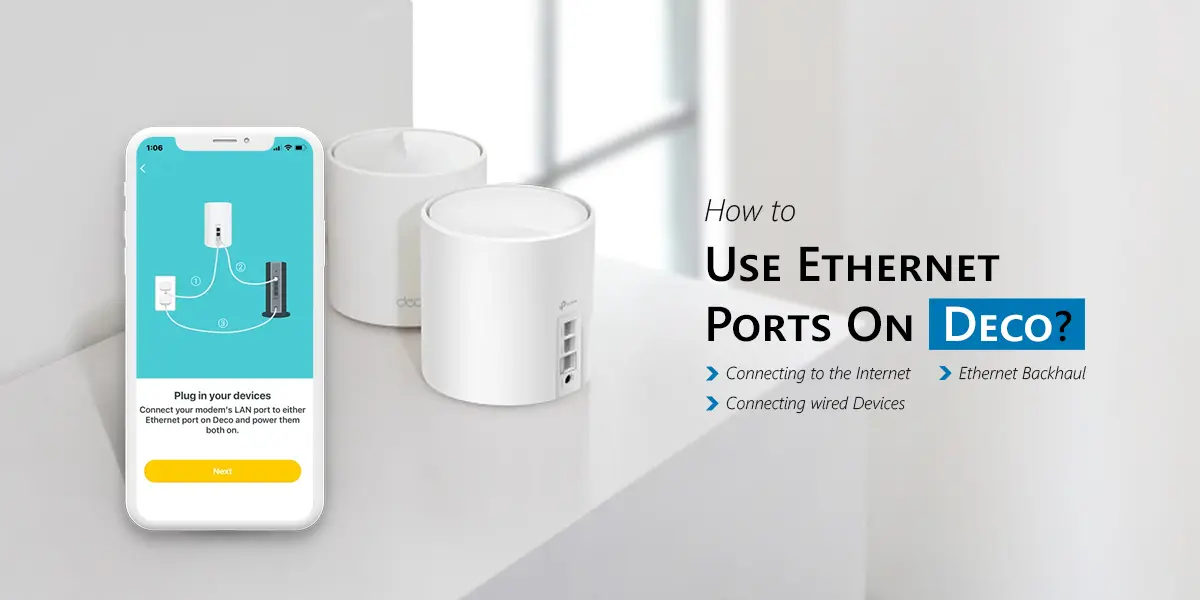
How Do I Properly Set Up the Ethernet Port on Deco?
A correct deco setup guide prevents many connection problems.
| Standard Deco | Ethernet Setup |
| Device | Connection |
| Modem | Main Deco Ethernet Port |
| Main Deco | Satellite Deco via Mesh |
| Computer | Any Available Deco Port |
| Switch | LAN Port on Main Deco |
| Gaming Console | LAN Port on Deco |
Setup Steps
- Turn off modem and Deco.
- Connect modem to the main Deco.
- Power on modem.
- Wait until modem fully starts.
- Power on Deco.
- Open the Deco app.
- Complete setup.
- Connect wired devices.
This tplink deco setup works for most internet providers.
How Can I Fix Deco Ethernet Port Not Working?
Follow these steps one by one.
Restart Everything
A simple reboot fixes many issues.
Restart these:
- Modem
- Deco units
- Connected devices
- Wait 2-3 minutes before testing.
I’ve also seen cases where the Ethernet connection started working again immediately after both the modem and Deco were powered off for a few minutes and restarted in the correct order.
Test Another Ethernet Cable
- Swap the cable with a known working one.
- Many users discover the cable is the actual problem.
Try Another Deco Port
- Most Deco models include multiple Ethernet ports.
- Connect the cable to another port and test.
- If one port works and another doesn’t, the original port may be spoiled.
One thing many users overlook is checking the small LED indicators near the Ethernet port, as they can provide useful clues about whether the connection is being detected.
Tplink Deco Firmware Update
Open the Deco app and check for updates. Firmware updates often fix:
- Wired connection failures
- Port recognition issues
- Network instability
This should be one of the first troubleshooting steps.
Verify Internet Service
- Connect a computer straight to the modem.
- If the internet still doesn’t work, the issue may be with the ISP rather than the Deco system.
Factory Reset the Deco
If configuration settings are corrupted, a reset may help.
Steps:
- Locate the Reset button.
- Press and hold it for 10 seconds.
- Wait for a reboot.
- Set up the Deco network again.
Only do this after trying other fixes.
Before performing a TP-link Deco factory reset, I recommend trying all basic troubleshooting steps first because resetting the Deco network means you’ll need to set everything up again from scratch.
What Troubleshooting Steps Should I Follow for Deco Ethernet Problems?
Use this quick troubleshooting checklist.
| Check | Action |
| Ethernet cable | Replace cable |
| Port condition | Inspect physically |
| Deco firmware | Update firmware |
| ISP connection | Test modem directly |
| Device compatibility | Try another device |
| Deco settings | Reconfigure network |
| Hardware failure | Contact TP-Link support |
Following this sequence saves time and avoids unnecessary resets.
If you’re using a gaming console, smart TV, or older computer, testing the same cable with another device can quickly help narrow down where the problem is coming from.
Is the Ethernet Port on Deco Better Than Wi-Fi?
In many situations, yes. Ethernet connections provide:
- Lower latency
- Faster speeds
- Better gaming performance
- Stable video calls
- Reliable streaming
For gaming PCs, NAS devices, workstations, and smart TVs, wired connections are often the best choice. However, if the Ethernet port is not functioning correctly, fixing the underlying issue is necessary to enjoy these benefits.
What Tips Can Prevent Future Deco Ethernet Port Issues?
Preventive maintenance goes a long way.
1. Use Quality Ethernet Cables
Cheap cables often fail over time.
Choose:
- Cat5e
- Cat6
- Cat6a
from reliable brands.
2. Keep Firmware Updated
Regular updates improve:
- Security
- Stability
- Compatibility
Enable update notifications in the Deco app.
3. Avoid Excessive Cable Movement
- Repeated bending can damage both cables and ports.
- Secure cables properly.
4. Protect Against Power Surges
Use:
- Surge protectors
- UPS backup systems
This helps protect networking equipment.
5. Clean Ports Occasionally
- Dust buildup can interfere with connections.
- Use compressed air carefully when needed.
FAQs
Why is my TP-Link Deco Ethernet port not detecting devices?
The most common reasons include faulty Ethernet cables, incorrect port connections, outdated firmware, or hardware damage. Testing with another cable and another device can help identify the exact cause before performing advanced troubleshooting.
Can a firmware update fix a Deco ethernet port not working issue?
Yes. Firmware updates often resolve bugs related to Ethernet connectivity, device detection, speed negotiation, and network stability. Always check for the latest firmware version through the Deco app before attempting a factory reset.
Why does my Ethernet connection work on one Deco port but not another?
This usually indicates a damaged port, dust buildup, hardware failure, or an internal port-related issue. Testing multiple devices and cables can help confirm whether a specific Ethernet port on Deco is malfunctioning.
Should I factory reset my Deco if the Ethernet port stops working?
A factory reset should be considered only after checking cables, firmware updates, ISP connectivity, and device compatibility. Resetting removes all settings and requires complete network reconfiguration afterward.
Can I use a network switch with TP-Link Deco?
Yes. Most TP-Link Deco systems support unmanaged network switches. Make sure the switch is connected correctly and compatible with your network setup to avoid communication or speed negotiation problems.
Final Thoughts
A Deco ethernet port not working issue can be frustrating, especially when you depend on a stable wired connection for work, gaming, streaming, or smart home devices. Fortunately, most Ethernet problems are caused by simple things like bad cables, incorrect deco setup, outdated firmware, or temporary network glitches.
Start with the basics. Check cables. Restart devices. Update firmware. Verify port functionality. If the Ethernet port on Deco still doesn’t work after troubleshooting, there may be a hardware issue that requires assistance from TP-Link support. By following the steps in this guide, you can quickly restore your wired connection and keep your Deco mesh network running smoothly in 2026 and beyond.