Setting up Google Nest on a TP-Link Deco mesh network is usually straightforward, but certain Deco settings can interrupt device pairing. Problems usually appear when Google Home detects the Nest device but fails during the WiFi authentication or provisioning stage. Alternatively, the Nest speaker connects once and then abruptly disconnects. The setup steps in this guide apply to Deco X20, X50, XE75, M5, and other modern TP-Link Deco models. Once the correct mesh settings are configured, Google Nest devices typically remain stable on Deco networks. Most setup failures occur during the first WiFi handshake between Google Home and the Deco mesh network rather than after installation.
This guide walks through the exact steps needed to connect Google Nest devices to a TP-Link Deco mesh network and fix the most common pairing problems.
Quick Answer
Open the Google Home app, reset your Nest device, and use the correct password to connect it to your Deco WiFi network in order to connect Deco to Google Nest. If the setup doesn’t work, keep the Nest device near the main Deco router and turn off Fast Roaming in the Deco app.
How Do You Connect Deco to Google Nest?
To link TP-Link Deco with Google Nest:
- Link your phone to the Deco wireless network.
- Launch the Google Home application.
- If using a Nest device, reset it before tapping “Set up device” in Google Home.
- Choose your Nest gadget.
- Select the Deco WiFi network.
- Put the password in.
- Complete the setup
If the setup is unsuccessful:
- Use WPA2/WPA3 mixed security and turn off fast roaming in Deco.
- Keep the Nest gadget close to the main Deco unit.
- Some Nest devices may fail to connect when Deco is configured for WPA3-only security. Switching to WPA2/WPA3 mixed mode often resolves the issue.
- Update the firmware for Deco
The majority of setup issues are resolved by these improvements.
Is TP-Link Deco Compatible With Google Nest?
Google Nest devices are completely compatible with TP-Link Deco.
Devices that are supported include:
- Supported devices include Google Nest Mini, Nest Audio, Nest Hub, Chromecast, and Google TV.
Recent Deco WiFi 6 and WiFi 7 models handle multiple smart home devices more reliably than older single-router setups. The most recent WiFi 6 and WiFi 7 Deco versions seamlessly manage several smart devices.
In most cases, the issue is not hardware compatibility but mesh network settings such as Fast Roaming, WPA3 security, or band steering behavior.
For instance:
- Fast roaming could cause setup issues.
- Older Nest devices may be blocked by WPA3-only mode.
- Pairing failure could result from a weak signal.
- Device discovery may be stopped by VPN apps
After adjusting these mesh settings, most Google Nest devices connect reliably and stay online without frequent drops or reconnection issues.
Things You Need Before Setup
Make sure everything is prepared before you begin.
Tp-Link Deco Network In Operation
You should already have internet connection on your Deco system.
Among the models that are supported are:
- Deco X20 Deco X50
- XE75 Deco
- Deco M5, Deco S7, and Deco BE series
1. First address any instability in your network.
Check our Related Guide: Deco blinking red fix
2. The Google Nest gadget
Any Google Home or Nest device ought to function.
For instance:
- Google Home Mini, Nest Hub, Nest Audio, and Nest Mini
3. The Google Home App
- On your iPhone or Android device, install the most recent version.
- Older versions of the software might not work during setup.
4. The Deco App
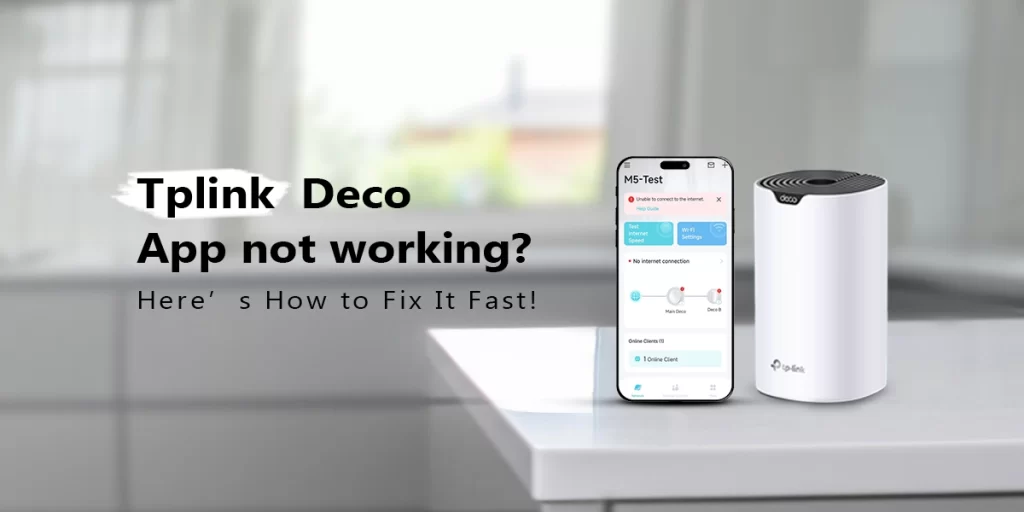
- To control WiFi settings, you must have the Deco app. Read this if the application crashes or does not load properly:
Deco app not working
Tip: We noticed setup success rates improved when phones stayed connected to the primary Deco node instead of satellite nodes
5. Firmware Update
Many issues with smart homes are caused by outdated firmware. An upgrade to the firmware can resolve:
- Unpredictable disconnections and setup errors
- Bugs
- Compatibility difficulties with smart devices
Suggested Instructions: TP-Link Deco firmware update
How to Connect Deco to Google Nest (Step-by-Step)
Let’s now fully complete the entire setup.
1. First link your phone to Deco WiFi.
This step matters because Google Home requires both the phone and Nest device to remain on the same local network during initial pairing.
Additionally:
- Temporarily disable mobile data
- Activate Bluetooth
- Remain close to the primary Deco router.
- Staying close to the primary Deco unit improves Bluetooth discovery and reduces local network detection failures during setup.
2: Launch the Google Home app
Launch the Google Home application.
- Next, tap + → Device setup → New device
- Google Home will now look for Nest devices in the vicinity.
3. Reset the Google Nest gadget
Reset the Nest device first if it was previously attached. Setup issues are frequently caused by outdated WiFi information.
For instance,
- Nest Mini Reset
- Switch off the microphone.
- Press the center button.
- Await the sound of the reset confirmation.
- The gadget will restart
In some cases, a full factory reset may be required before the Nest device can pair successfully.
4: Choose Your Nest Device
After Google Home locates the gadget:
- Press the name of the device.
- Verify the setup code.
- Proceed with the setup
If the gadget is not visible:
- Turn on Bluetooth again.
- Restart the phone.
- Approach the Deco router more closely.
5: Select the Deco WiFi Network
- Choose your Deco WiFi now.
- Carefully enter the password.
- One of the most common setup errors is using incorrect passwords.
After this stage, the tp link deco Google Home setup typically takes two to five minutes to finish.
6: Finish Setting Up Google Assistant
Google will now:
- Link the device, sync the settings, update the firmware, and turn on Google Assistant.
- Avoid shutting off the application at this point.
- When it’s done, the Google Home app should show your Google Nest device online.
Best Deco Settings for Google Nest Devices
These settings improve connection stability and reduce random disconnects.
| Deco Setting | Recommending Options |
| Fast roaming | Off |
| Beamforming | On |
| UPnP | On |
| Security mode | WPA2/WPA3 mixed |
| QoS | Standard |
| Guest network | OFF during setup |
| IPv6 | Optional |
| DHCP | On |
These settings improve long-term google nest wifi with deco performance.
Google Nest Not Connecting to Deco — Fixes
Try these tried-and-true solutions if setup continues to fail.
Turn off fast roaming
This is the best solution. Visit:
- Deco App → More → Advanced → Quick Roaming → Disabled
- Fast Roaming allows devices to switch between Deco mesh nodes more aggressively, which can sometimes interfere with smart home setup.
- Fast Roaming can interrupt multicast discovery and device handoff during setup, especially on older Nest hardware connected to WiFi 6 mesh networks.
Disabling Fast Roaming should be your first troubleshooting step.
Restart everything.
- Nest device, modem phone, and deco units
- Next, attempt setup once more.
- Deco mesh systems can temporarily retain cached connection data, which may interfere with fresh device pairing attempts.
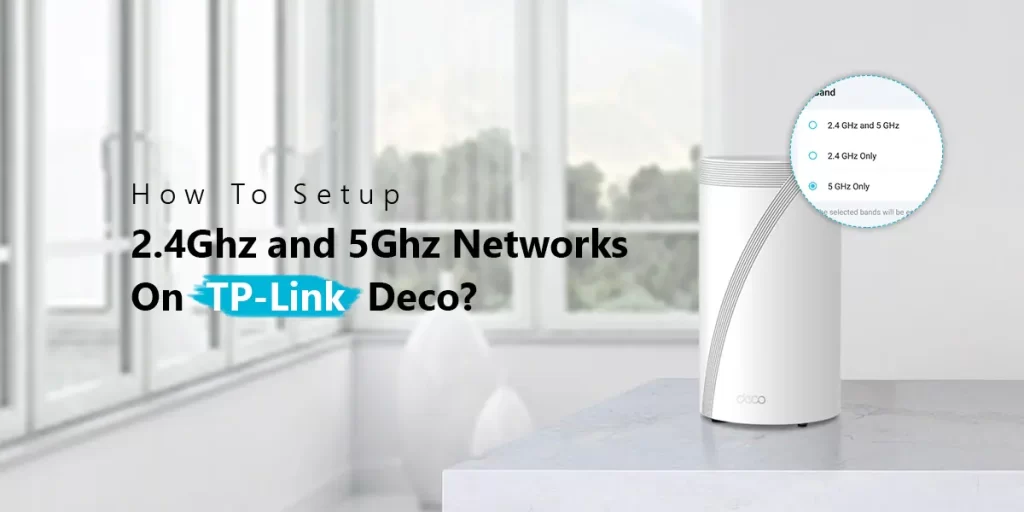
When setting up, use 2.4GHz
When first pairing, 2.4GHz is preferred by many smart devices.
If at all possible:
- WiFi bands should be temporarily separated.
- First, connect the Nest device to 2.4GHz.
- Dual-band often functions well after setup.
Relocate Close to the Main Deco Unit
- Setup may be disrupted by a weak signal.
- Remain a few feet away from the main Deco node.
- Don’t set up through floors or walls.
Verify the Deco Firmware
- Google gadgets may not be compatible with outdated firmware.
- Install the most recent update at all times.
Resolve Google Home’s inability to locate the Nest device
This problem is very common. The app never locates the device despite continuing to search. These are the remedies that typically work.
Activate Bluetooth
- When pairing, Google Home makes use of Bluetooth.
- Without Bluetooth, discovery could fail right away.
Permit App Permissions
The Google Home app requires:
- Bluetooth connectivity
- Access to nearby devices
- Permission to locate
The app might not be able to identify the Nest device without rights.
Turn off VPN apps
Local device discovery is frequently blocked by VPN providers.
Switch off:
- Ad blockers, VPN apps, and private DNS apps
- Next, attempt the setup again.
Make Use of the Same Google Account
- The Google account should be used by both your phone and the Google Home app.
- Pairing issues may arise from mixed accounts.
Once more, factory reset
- The reset procedure occasionally fails to finish properly.
- Often, a second reset resolves persistent configuration problems.
Deco Mesh Settings That May Affect Google Nest
Certain sophisticated settings could cause problems for smart home appliances.
AP Isolation
- Turn off AP isolation. Devices cannot efficiently communicate with one another if enabled.
- Enabling AP Isolation can prevent local devices from communicating properly, which may break Google Cast, speaker groups, and smart home automation features.
WPA3-Only Protection
Steer clear of WPA3-only mode. Certain Nest products still function better with:
- WPA2 WPA2/WPA3 hybrid mode
- Deco Google Assistant setup compatibility is enhanced as a result.
Limitations on QoS
- Smart gadgets may be limited by aggressive QoS settings. Generally, balanced settings are most effective.
IPv6 Configuration
Although some customers report setup problems, IPv6 is generally safe. If the setup keeps failing:
- Turn off IPv6 for a while.
- Complete setup
- If necessary, turn on IPv6 later.
Advanced Troubleshooting
Are you still having issues? Try these sophisticated solutions.
Forget wifi on phone.
On your mobile device:
- Forget Deco WiFi.
- Manually reconnect and attempt setting up Google Home again.
- Local network settings are updated as a result.
Reinstall the Google Home app.
Setup can be disrupted by a corrupted app cache. Reinstalling the program frequently resolves:
- Never-ending search, setup freezing, unsuccessful pairing
Establish Temporary WiFi for Guests
- Testing on a different network might occasionally aid in problem isolation.
- Establish a temporary guest WiFi network and test the configuration there.
- Return the device to the primary network once configuration is complete.
Reset the phone’s network settings
- This resolves previous WiFi and Bluetooth issues.
Particularly helpful for Android smartphones that have a lot of saved smart home connections.
Tips for Better Google Nest Performance on Deco
Optimize your network for increased stability after setup is finished.
Arrange Deco Units Properly
Steer clear of Deco units:
- behind televisions
- within cabinets
- close to microwaves
- next to metal items
Coverage is greatly enhanced by open placement.
Don’t Overload a Single Mesh Node
- One node’s performance may suffer if it has too many devices.
- Distribute smart gadgets among several Deco units.
Update the firmware
Updates to the firmware improve:
- deco mesh google nest compatibility with smart devices, roaming efficiency, and security
- For steady deco nest mini setup performance, this is essential.
Every month, restart the network
- Maintaining smooth performance is made easier with a straightforward reset.
- Although many users overlook this, it lessens sporadic problems with smart devices.
Deco vs Google Nest WiFi
| Feature | Tp link deco | Google nest wifi |
| Wifi coverage | Excellent | Good |
| Wifi speed | Faster on wifi 6/7 models | Moderate |
| Smart home integration | Good | Excellent |
| Advanced controls | Better | Limited |
| App features | More detailed | Simpler |
| Mesh stability | Very strong | Good |
| Price value | Better | More expensive |
| Google ecosystem integration | Compatible | Native |
There is typically no need to switch to Google Nest WiFi if you already have Deco.
Google Nest compatibility with Deco Mesh is already rather dependable. Google Nest devices rely heavily on multicast discovery during setup. Some Deco mesh features interrupt this communication temporarily.
FAQs
Does Google Nest Work With TP-Link Deco?
TP-Link Deco mesh systems are compatible with Google Nest devices. WiFi settings like Fast Roaming, WPA3 security mode, or out-of-date Deco firmware are the main causes of connection issues.
Why Is Google Nest Not Connecting to Deco?
Weak signal strength, fast roaming, incorrect WiFi passwords, VPN interference, WPA3-only security, or outdated Deco firmware that causes compatibility problems can all prevent Google Nest from connecting.
Should I Disable Fast Roaming?
Yes, it is advised to disable fast roaming during setup. Numerous Google Nest devices have trouble moving between mesh nodes, which can disrupt pairing and subsequently result in erratic WiFi connectivity.
Can Deco Replace Google Nest WiFi?
Google Nest WiFi can be totally replaced with TP-Link Deco. For smart homes and numerous connected devices, Deco provides robust coverage, improved customization, sophisticated controls, and outstanding performance.
Why Does Google Home App Not Find My Device?
If Bluetooth is turned off, permissions are blocked, a VPN is enabled, or the Google Nest device was not reset correctly, the Google Home app might not recognize your device.
Is AP Mode Good for Google Nest?
In the majority of homes, AP Mode is compatible with Google Nest devices. Deco enhances network stability and WiFi coverage while maintaining the functionality of your current router.
Can I Use Guest WiFi for Google Nest?
Guest WiFi networks can be used by Google Nest devices. Over time, though, the primary network typically offers greater reliability, more seamless smart home connection, and fewer connectivity problems.
Final Thoughts
It shouldn’t be difficult to connect deco to google nest. However, during configuration, mesh WiFi settings might occasionally confuse smart devices. Most connection issues can be swiftly resolved with these procedures. Once the initial setup is completed successfully, Google Nest devices typically remain stable on Deco mesh networks with very few disconnects or maintenance issues. Try using Fast Roaming first if your Google Nest still won’t connect. In most cases, disabling Fast Roaming resolves the majority of Google Nest connection issues on Deco networks. A weak WiFi signal can interrupt the initial pairing process, so place the Nest device close to the main Deco node during setup.