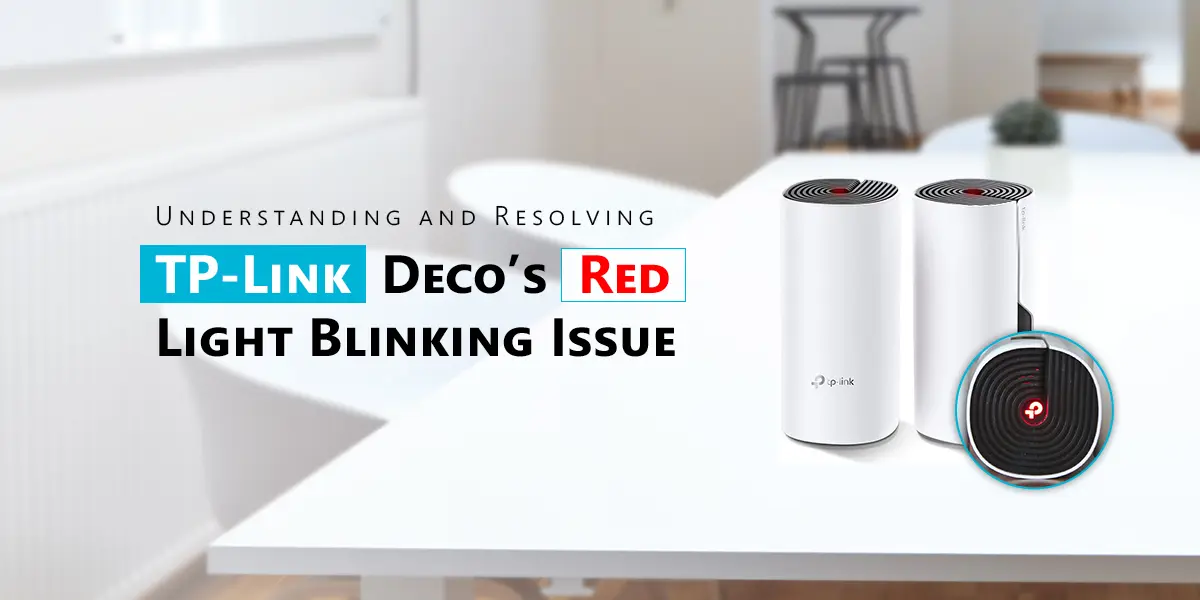
A TP-Link Deco blinking red light usually means the Deco cannot connect to the internet or has lost communication with the main mesh unit. In most cases, restarting the network, checking cables, moving the satellite closer or updating the firmware fixes the problem.
Seeing a TP-Link Deco blinking red light can be frustrating.
Your Wi-Fi suddenly stops working. Devices disconnect. Streaming buffers. Video calls drop.
The good news is that a blinking red light does not always mean your Deco is damaged. In most homes, this problem is caused by one of these issues:
- Internet service outage
- Loose Ethernet cable
- Satellite losing connection
- Firmware bug
- Wrong DNS settings
- Power interruption
I have personally seen this happen after changing an ISP modem. The Deco worked perfectly for months. Then one morning it started blinking red. Everything looked normal. The modem lights were on but the Deco refused to connect. The fix took less than five minutes.
The modem needed a reboot because it had locked onto the previous MAC address. Problems like this are much more common than people think. This guide explains every possible cause in easiest way. You’ll also learn how to fix the issue without guessing.
Whether you own a Deco BE Series, X Series, M5, M4, E4, S7, M9 Plus or W2400, the steps below work for almost every model.
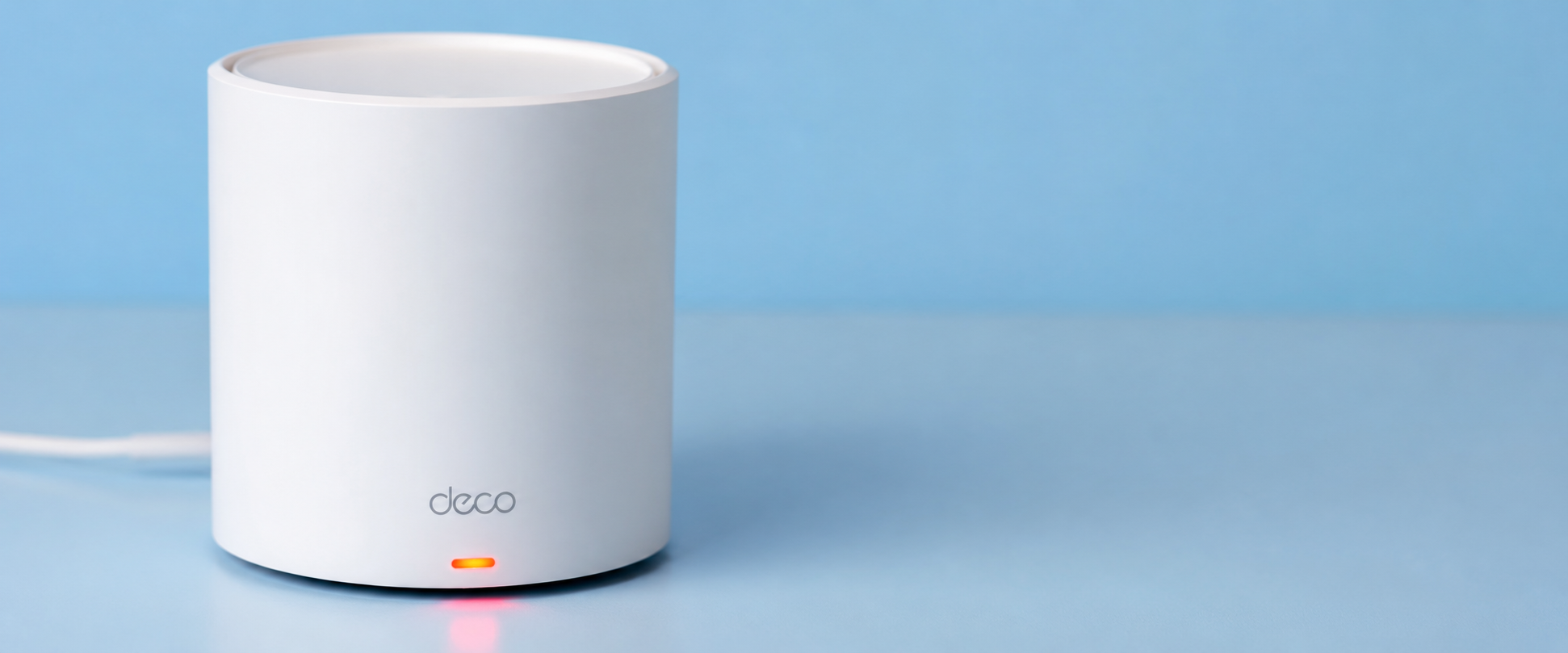
What Does a Blinking Red Light on TP-Link Deco Mean?
A TP-Link Deco blinking red light means your Deco is unable to establish a working internet connection. Sometimes the problem is between the Deco and your modem. Sometimes it is between the main Deco and a satellite Deco.
The LED is basically telling you:
“I can’t reach the internet.”
That does not automatically mean your ISP is down. It could simply be a cable, firmware issue or wireless backhaul problem.
Blinking vs. Solid Red — Key Difference
Many users confuse these two lights. Here is the difference.
| LED Status | Meaning | Common Cause | Difficulty |
| Blinking Red | Trying to connect but failing | ISP issue, satellite disconnected, DNS problem | Easy |
| Solid Red | Connection completely failed | Main Deco offline, modem problem, hardware issue | Medium |
| Flashing Red After Update | Firmware problem | Interrupted update | Medium |
| Red then Green | Temporary reboot | Normal startup | None |
A tp-link deco solid red light usually needs more attention because the connection has already failed completely. A blinking light still means the Deco is attempting to recover.
Main Deco vs. Satellite Deco: Why It Matters
Before troubleshooting, identify which Deco is showing red. This saves a lot of time.
| Device | What Red Usually Means |
| Main Deco | Cannot reach modem or ISP |
| Satellite Deco | Lost connection to main Deco |
| Multiple Decos | Internet outage or firmware issue |
| One Satellite Only | Distance or interference |
Many users immediately reset everything. That is rarely necessary.
For example:
Imagine your living room Deco works perfectly. Your upstairs Deco blinks red. Your internet is still working downstairs. This almost always means the satellite is too far away or blocked by thick walls.
Quick Reference — Deco LED Colors (2026 Models)
The LED behavior is similar across most Deco models.
| Model | Blinking Red | Solid Red | Green | Blue |
| Deco BE Series | Cannot reach internet | Internet unavailable | Connected | Setup Mode |
| Deco X Series | Connection retry | Offline | Working | Pairing |
| Deco M5 | Network issue | Offline | Normal | Setup |
| Deco M9 Plus | Lost WAN | Failed WAN | Connected | Pairing |
| Deco S7 | Searching network | No internet | Connected | Setup |
| Deco M4 | Internet failure | Offline | Working | Ready to configure |
| Deco E4 | Connection problem | WAN unavailable | Connected | Pairing |
| Deco W2400 | Mesh reconnecting | Offline | Normal | Setup |
Top Causes of TP-Link Deco Red Light in 2026
Let’s look at the most common reasons.
Satellite Disconnected from Main Unit (Range or Obstruction)
This is one of the biggest causes of a deco satellite blinking red. Satellite Decos communicate wirelessly. If they are too far apart, the signal becomes weak.
Common obstacles include:
- Concrete walls
- Large mirrors
- Metal cabinets
- Refrigerators
- Water tanks
- Elevators
I once helped a friend whose upstairs Deco suddenly went offline. Nothing had changed. Except one thing. They had moved a large steel bookshelf between the two Decos. After relocating the shelf, the satellite connected within two minutes. Sometimes the smallest changes matter.
ISP Outage or Local Network Issue
If your ISP loses connection, the Deco cannot create internet access. It simply reports the problem. Look at your modem. If its Internet light is also red or off, the issue is probably outside your home. Many people blame the Deco first. In reality, the ISP may already be repairing an outage.
This is especially common during:
- Heavy rain
- Fiber maintenance
- Local power outages
- ISP upgrades
If multiple neighbors also have no internet, your Deco is probably fine. This often explains tp-link deco red light no internet issues.
Incorrect or Blocked DNS Requests
Sometimes the internet is technically connected. But websites refuse to load. The Deco then struggles to verify connectivity. Changing DNS servers often fixes this.
Many users switch to:
- 8.8.8.8
- 8.8.4.4
These public DNS servers are fast and reliable. If your ISP’s DNS servers are slow, this simple change can make the network stable again.
Loose, Damaged or Incorrect Ethernet Cabling
Never ignore cables. They cause more problems than most people realize. Things to check:
- Loose LAN cable
- Damaged RJ45 connector
- Bent Ethernet pin
- Wrong LAN port
- Old Cat5 cable
Try another Ethernet cable if possible. It only takes a minute.
Firmware Bugs After a Recent Update
A surprising number of users report problems after automatic updates. Sometimes the firmware installs correctly. Sometimes background settings become corrupted. If you notice a deco red light after firmware update, check whether TP-Link has released another firmware patch. Many minor firmware bugs are fixed within a few weeks.
Power Supply Instability or Overheating
Deco units dislike unstable power. Cheap extension boards sometimes cause voltage drops. Overheating is another issue.
Avoid placing a Deco:
- Behind a TV
- Inside a cabinet
- Near heaters
- In direct sunlight
Warm devices restart more often. That can trigger temporary red lights.
MAC Address Mismatch with ISP Modem
Some internet providers remember the MAC address of your previous router. When you replace it with a Deco, the modem refuses the new connection. The Deco keeps blinking red. Restarting the modem usually clears the stored MAC address. If not, contact your ISP. They can refresh the connection remotely.
How to Fix TP-Link Deco Blinking Red Light (Step-by-Step)
Now let’s solve the problem. Start with the easiest fixes first.
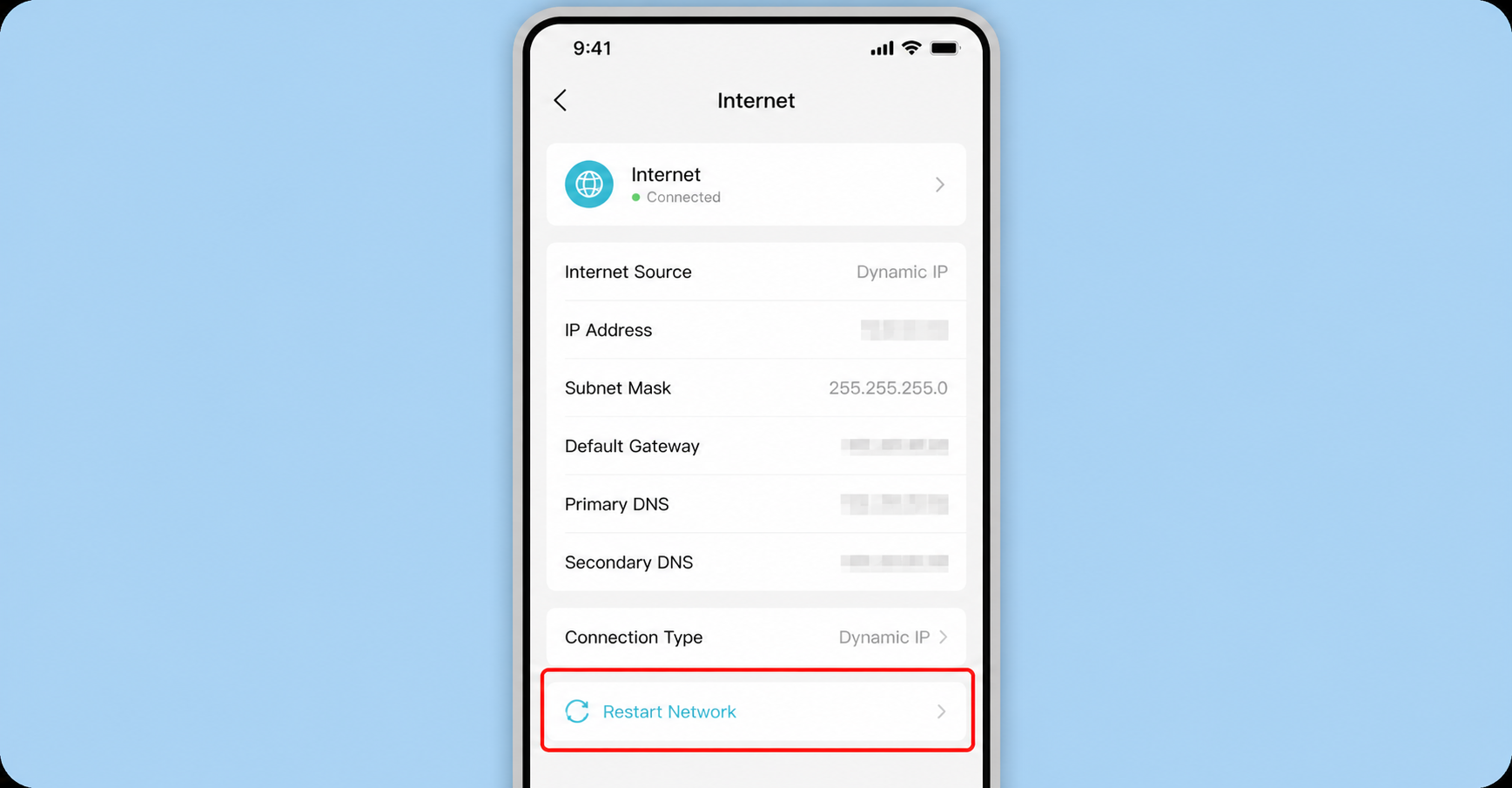
Restart the Deco Network via the App
Open the Deco app. Go to:
- Network → Internet → Restart Network
Wait about three minutes. Do not unplug the Deco immediately. Many temporary errors disappear after a software restart.
Quick Troubleshooting Order
| Step | Time Required | Success Rate |
| Restart Network | 2 minutes | Very High |
| Check Cables | 2 minutes | High |
| Move Satellite | 5 minutes | High |
| Change DNS | 3 minutes | Medium |
| Update Firmware | 10 minutes | High |
| Factory Reset | 15 minutes | Last Option |
Move the Satellite Closer to the Main Unit
If only one Deco shows red, distance is often the problem.
A good rule is:
- Keep each satellite within one or two rooms of another Deco.
Avoid placing it:
- Behind thick concrete walls
- Inside cupboards
- Next to microwave ovens
- Behind large TVs
Even moving it by 2–3 meters can improve the signal. This is one of the easiest deco flashing red light fix methods.
Check and Reseat All Ethernet Cables
- Unplug every Ethernet cable.
- Wait 30 seconds.
- Plug them back in firmly.
Then check:
| Cable | Should Connect To |
| ISP Modem | Main Deco WAN Port |
| Main Deco | Switch (optional) |
| Satellite | Wireless or Ethernet Backhaul |
A loose cable can look fully connected while failing internally. If available, test with a different cable. That simple swap has solved many tp-link deco offline and red light problems. If your tp-link deco blinking red light is still there after restarting the network and checking the cables, don’t worry. Continue with the following steps.
Most users fix the issue before reaching the factory reset step.
Change DNS Settings to 8.8.8.8 / 8.8.4.4
Sometimes your internet connection is active, but your Deco cannot resolve websites because of DNS problems. This is more common than many people realize.
For example, I once helped a neighbor whose Deco kept blinking red every evening. The ISP connection was fine. Speed tests worked occasionally. But websites loaded slowly and the Deco app kept reporting internet issues.
Changing the DNS solved the problem immediately.
How to change DNS
- Open the Deco app.
- Go to More → Advanced → IPv4.
- Find the DNS Server option.
- Disable Automatic DNS if needed.
Enter:
| DNS Server | Address |
| Primary DNS | 8.8.8.8 |
| Secondary DNS | 8.8.4.4 |
Save the settings. Restart the Deco.
If the problem was caused by slow ISP DNS servers, the tp-link deco blinking red light may disappear after the restart.
Confirm the ISP Connection (Bypass Test)
Before blaming your Deco, make sure your internet service is actually working. A simple bypass test can save hours of unnecessary troubleshooting.
Here’s how
- Disconnect the Deco from the modem.
- Connect a laptop or desktop directly to the modem using an Ethernet cable.
- Restart the modem.
- Wait until all modem lights become stable.
- Open a few websites.
Then see the Results
| Test Result | Meaning |
| Internet works | Deco is the problem |
| Internet doesn’t work | ISP or modem issue |
| Very slow internet | ISP line problem |
| No IP address | Contact ISP |
If your computer also has no internet, the Deco isn’t causing the issue. This is a classic tp-link deco red light no internet situation where the ISP connection has failed.
Update Deco Firmware
Firmware updates fix bugs. They also improve mesh stability. In 2026, TP-Link released several firmware improvements that addressed temporary red-light issues on some Deco models.
- Check for updates
- Open the Deco app.
- Tap More.
- Select Update Deco.
- Install any available firmware.
- Wait until every Deco finishes updating.
Never unplug a Deco during an update. Doing so can corrupt the firmware. If your problem started after an update, install the newest patch if one is available. Many users reporting a deco red light after firmware update found that a later update fixed the issue.
For a more detailed process you can check our “Deco firmware update guide”.
Power Cycle the Entire Mesh System
Many users restart only the Deco but that isn’t always enough. The modem, router and Deco should restart in the correct order.
- Correct restart order
- Turn off every Deco.
- Turn off the modem.
- Wait for two minutes.
- Turn on the modem first.
- Wait until the internet light becomes stable.
- Turn on the main Deco.
- Wait until it connects.
- Turn on the satellite Decos one by one.
This process refreshes the connection between your ISP and the Deco. It also clears temporary network errors.
Power Cycle Checklist
| Device | Restart Order |
| ISP Modem | 1st |
| Main Deco | 2nd |
| Satellite Decos | Last |
This simple process fixes many Deco mesh Wi-Fi troubleshooting issues.
Step 8 — Factory Reset as a Last Resort
If nothing else works, reset the Deco. Only do this after trying every previous solution. A factory reset removes:
- Wi-Fi name
- Password
- Mesh settings
- Custom DNS
- Guest network
- Device priorities
how to factory Reset your deco procedure
Keep the Deco powered on. Press and hold the Reset button for about one second. Wait until the LED turns yellow. Release the button. Wait for reboot. Set up the Deco again through the app. A factory reset solves many software-related problems.
Note: if the issue is caused by your ISP, resetting will not help.
Fixing a Solid Red Light on the Main Deco Unit
A tp-link deco solid red light usually points to a problem between the main Deco and the modem. Unlike a blinking light, a solid red light means the Deco has stopped trying to reconnect.
Confirm Only the Main Deco Is Connected to the Modem
One common mistake is connecting multiple Decos directly to the modem. Only one Deco should connect to the modem. That unit becomes the main router. The remaining Decos connect wirelessly or through Ethernet backhaul.
- Correct setup
- Internet
- Modem
- Main Deco
- Satellite Decos
- Incorrect wiring often creates connection conflicts.
Test the Modem Directly with a PC
This is one of the fastest ways to identify the problem. Connect a computer directly to the modem.
- If the computer cannot access the internet, your Deco is not the problem.
- If the computer works perfectly, reconnect the Deco.
- If the Deco still shows a solid red light, continue with firmware updates or reset the device.
When It’s Your ISP’s Fault, Not Your Deco
Many users replace perfectly working Decos because they assume the hardware has failed. In reality, the ISP is often responsible.
Common ISP issues include:
- Fiber maintenance
- Cable damage
- Authentication failure
- PPPoE errors
- DHCP server problems
- Area-wide outages
If your modem also shows an internet warning light, contact your ISP first.
Satellite Deco Still Blinking Red? Try This
If only one satellite has a problem, don’t reset the entire system. Start with these checks.
Swap Satellite Positions to Isolate the Faulty Unit
- Move the problematic satellite to a room where another satellite works correctly. Then observe the results.
Results
| What Happens | Conclusion |
| Problem follows the Deco | Faulty Deco |
| Problem stays in the room | Poor placement |
| Both work | Temporary issue |
New Deco fails there too Signal obstruction
This test quickly identifies whether the location or the hardware is responsible.
Remove Wi-Fi Interference
Wireless interference is more common than people think.
Keep satellites away from:
- Soundbars
- Baby monitors
- Cordless phones
- Microwave ovens
- Metal cupboards
- Fish tanks
- Thick mirrors
One family I helped had a Deco sitting behind a large smart TV inside a wooden cabinet. The signal was extremely weak. Moving it onto an open shelf solved the issue in minutes.
Re-Pair the Satellite via the Deco App
If the satellite remains disconnected, pair it again.
Steps
- Open the Deco app.
- Tap Add Deco.
- Follow the pairing instructions.
- Wait until the LED becomes green.
If pairing fails repeatedly, reset only that satellite and try again.
2026 Update: New Deco Models and LED Behavior Changes
TP-Link introduced several improvements in its latest Deco models. These changes make troubleshooting easier.
How BE-Series (Wi-Fi 7) Decos Handle Red Light Alerts Differently
The new BE-series Decos provide smarter diagnostics. Instead of staying red for long periods, they attempt automatic recovery several times before reporting an error. This reduces unnecessary reboots. The Deco app also provides more detailed error messages than older models.
New “Smart Diagnostics” in the Latest Deco App
The latest Deco app includes improved troubleshooting tools.
You can now quickly check:
- Internet status
- Satellite signal strength
- Ethernet connection
- Firmware version
- Device health
- Mesh quality
Instead of guessing, the app highlights where the problem exists.
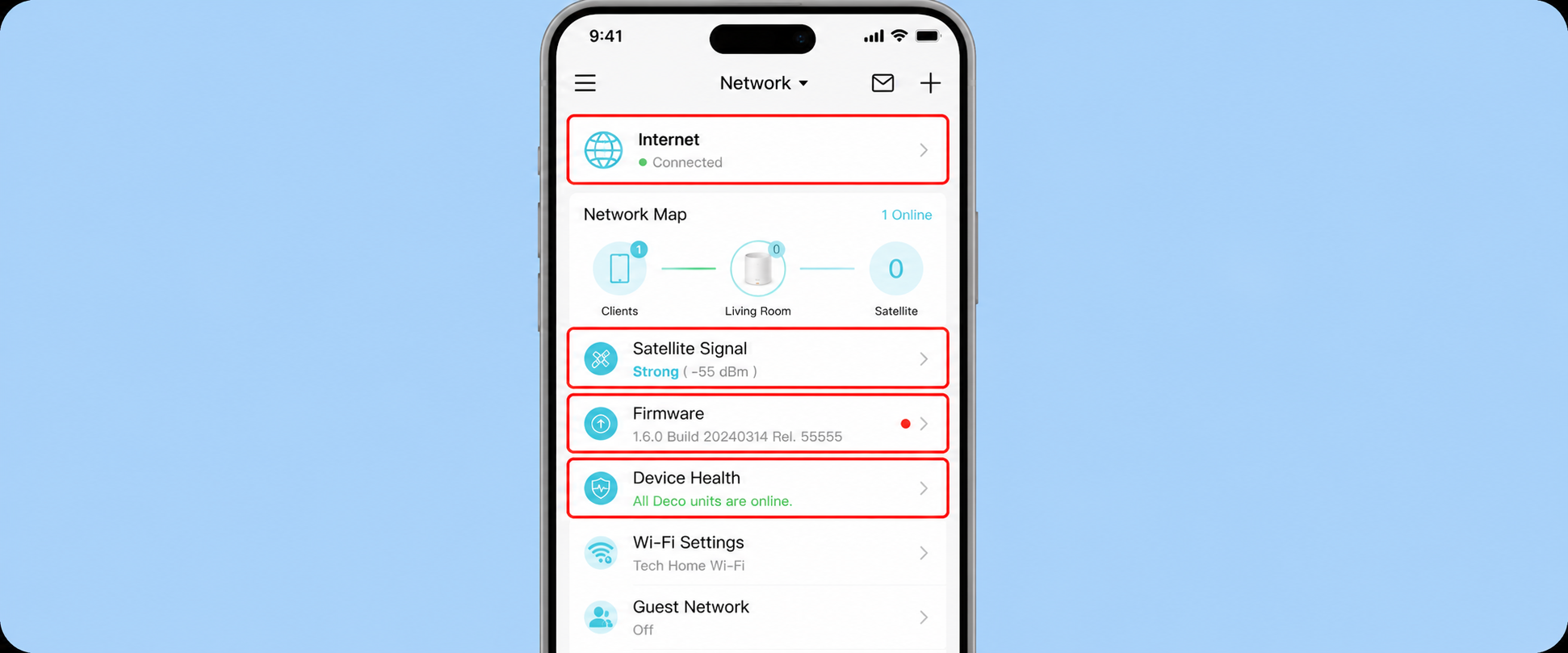
For example:
- Weak satellite signal
- Internet unavailable
- Firmware outdated
- Cable disconnected
TP-Link’s Updated Firmware Release Notes Addressing Red-Light Bugs
Recent firmware updates have focused on improving:
- Mesh stability
- Automatic reconnection
- ISP compatibility
- Wi-Fi 7 optimization
- Satellite roaming
- Ethernet backhaul reliability
Keeping your Deco updated reduces the chance of future red-light problems.
How to Prevent Deco Red Light Issues Going Forward
Prevention is easier than troubleshooting. Here are a few habits that make a big difference.
Keep Firmware Auto-Updates On
Firmware updates often fix bugs before you notice them. Enable automatic updates unless you have a specific reason not to.
Optimal Deco Placement Checklist
Use this checklist whenever you install a new Deco.
| Recommended | Avoid |
| Open shelf | Closed cabinet |
| Waist to chest height | Floor |
| Central room | Corner of house |
| Away from metal | Beside refrigerator |
| Ventilated area | Behind TV |
Good placement improves coverage and reduces the chance of a deco satellite blinking red.
Schedule Regular Reboots
Restarting the network every few weeks helps clear temporary memory issues. Many users schedule a monthly reboot during the night. It keeps the network running smoothly.
Monitor Network Health via the Deco App
Check the app occasionally. Look for:
- Offline satellites
- Deco showing offline
- Weak signal
- Pending firmware updates
- Unusual network interruptions
Catching small issues early prevents bigger problems later.
When to Contact TP-Link Support or Replace Your Unit
Contact TP-Link support if:
- The Deco stays red after every troubleshooting step.
- Factory reset doesn’t help.
- The device keeps restarting.
- The power LED never changes.
- The unit becomes unusually hot.
Only one Deco repeatedly fails while others work normally. If your Deco is still under warranty, a replacement may be available.
Frequently Asked Questions
Why is my Deco satellite blinking red but internet still works?
A blinking red satellite usually means it has lost communication with the main Deco. Your main unit is still connected to the internet, so other devices continue working. Move the satellite closer, remove nearby interference or re-pair it through the Deco app.
How long should I wait before resetting my Deco?
Wait at least 10–15 minutes after restarting the modem and Deco. Many temporary ISP or firmware issues resolve automatically. Perform a factory reset only after checking cables, updating firmware and confirming the internet connection is working properly.
Does a red light mean my Deco is broken?
No. In most cases, a red light indicates a connection problem rather than hardware failure. ISP outages, loose cables, incorrect DNS settings or a disconnected satellite are much more common causes than a defective Deco.
Can weather or ISP maintenance cause a Deco red light?
Yes. Heavy rain, storms, fiber cuts and scheduled ISP maintenance can interrupt your internet connection. During these events, the Deco may display a blinking or solid red light until the service is restored.
Why does my Deco turn red exactly 24 hours after a reboot?
This often points to a recurring network issue such as ISP DHCP lease renewal, PPPoE session problems, modem compatibility or firmware bugs. Check your modem logs, update the Deco firmware and contact your ISP if the pattern continues.
Final Thoughts
A tp-link deco blinking red light looks alarming, but it usually has a simple explanation. In most cases, the issue comes down to a lost internet connection, a disconnected satellite, faulty cabling, outdated firmware or incorrect network settings—not a broken device.
Start with the easiest fixes first. Restart the network, check every cable, move the satellite closer, update the firmware and verify your ISP connection. Only perform a factory reset if nothing else works.
By following the steps in this guide and keeping your Deco system updated, you can solve most red-light issues in just a few minutes and keep your mesh Wi-Fi running reliably throughout 2026.