Also confirm that your Deco model supports the selected features and that your HomeShield subscription is active if required. Finally, update the Deco app and firmware, restart the network if necessary and test the settings again.
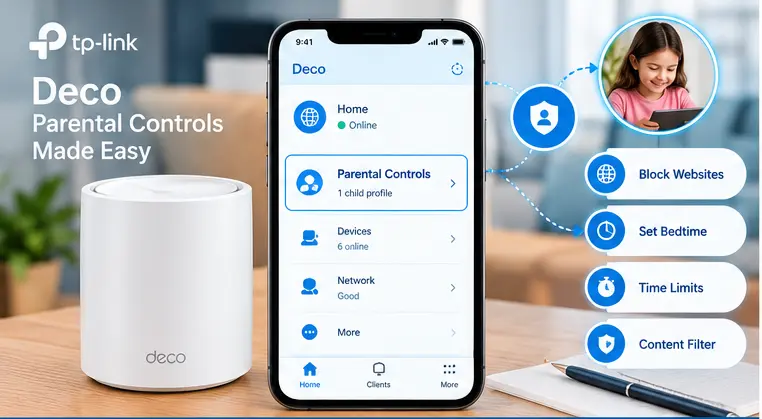
TP-Link Deco parental controls help parents manage internet access, block selected websites, filter online content and set bedtime schedules for children’s devices. These features can help families build healthier online habits and manage screen time at home.
However, sometimes the settings do not work as expected. A blocked website may still open, a child’s device may remain connected after bedtime, or the Deco app may report that the daily internet time limit has already been reached.
These problems do not always mean your Deco system is faulty. Incorrect device profiles, randomized MAC addresses, schedule settings, background internet activity, subscription restrictions and outdated software can all affect parental control behavior.
In this guide, you will learn how to fix TP-Link Deco parental controls not working, including website blocking problems, bedtime restrictions and screen-time limits.
Note: This is an independent troubleshooting guide and is not affiliated with or endorsed by TP-Link. Menu names and available features may vary by Deco model, firmware, region, app version and HomeShield subscription.
Why Are TP-Link Deco Parental Controls Not Working?
Before changing your settings, identify which feature is failing. Different parental control problems can have different causes.
| Problem | Possible cause | First thing to check |
| Deco parental controls not blocking websites | Incorrect profile, missing website entry, filter settings or alternate connection | Confirm the device profile and blocked website list. |
| TP-Link Deco bedtime schedule not working | Wrong schedule, time zone, selected days or device identity | Check the schedule and device assignment. |
| Deco parental controls time limit not working | Background internet activity, incorrect profile or unsupported feature | Review the usage report and profile settings. |
| Tplink deco offline in the profile but can access the internet | The device may be using a different private or randomized MAC address | Check its Wi-Fi privacy settings and profile assignment. |
| Advanced controls are missing | Feature or subscription limitations | Check HomeShield compatibility and subscription status. |
| Changes do not take effect | App, firmware or temporary network issue | Update the app, refresh the connection and retest. |
TP-Link explains that parental controls identify devices using their MAC addresses. If a device changes its randomized address, Deco may no longer recognize it as the same device. Time-limit reporting can also include background internet activity, which may make usage appear higher than expected.
The best approach is to fix the device assignment first, then troubleshoot the specific feature that is failing.
How to Fix TP-Link Deco Parental Controls Not Working
Follow the solutions in order. After each major change, test the affected device before moving to the next step.
1. Check Whether the Device Is Assigned to the Correct Profile
One of the most common reasons Deco parental controls fail is that the affected phone, tablet, computer or gaming console is not assigned to the intended profile.
For example, you might configure a bedtime schedule for your child’s profile, but the device could be assigned to another family member’s profile—or not assigned to any controlled profile.
How to check the device profile:
- Open the Deco app on your phone.
- Open Parental Controls or the relevant family/profile section.
- Select the profile you created for your child.
- Review the list of devices assigned to that profile.
- Confirm that the affected device appears in the list.
- If necessary, add or move the device to the correct profile using the available controls.
- Save the changes and test the restriction again.
Check the device’s name and MAC address carefully. Two devices can have similar names, especially when a phone, tablet and laptop all use the same account.
If your child uses several devices, make sure each one is assigned correctly. A profile usually applies rules to the devices associated with it; assigning only one device will not automatically control every device the child owns.
2. Disable Private or Randomized MAC Address for the Deco Network
If Deco shows a controlled device as offline while that device can still access the internet, its MAC address may have changed.
Many modern phones, tablets and computers use a private or randomized MAC address for Wi-Fi privacy. This is a useful privacy feature, but it can interfere with network controls that rely on a consistent device identifier.
TP-Link specifically identifies randomized MAC addresses as a possible reason parental controls may not take effect.
How to troubleshoot it:
- Open the Wi-Fi settings on the affected device.
- Select your home Wi-Fi network provided by Deco.
- Look for a setting such as Private Wi-Fi Address, Randomized MAC or MAC Address Type.
- Check whether the device is using a rotating or randomized address.
- If necessary, change the setting for your home network to use a stable device address, following the instructions for your operating system.
- Reconnect to Wi-Fi.
- Return to the Deco app and check whether the device appears correctly in its profile.
- Test the parental control rule again.
On some devices, private-address options differ by operating system version. On Android, the relevant option may be called Use randomized MAC or Use device MAC. On Apple devices, the Wi-Fi privacy settings may include a private address option.
Important privacy note: Disabling a private address can reduce Wi-Fi privacy. Consider changing this setting only for your trusted home network if necessary, rather than disabling privacy protections on every network.
If the device still appears as a new or separate client, review the device list in Deco and remove duplicate or outdated profile entries only when you are sure which entry is correct.
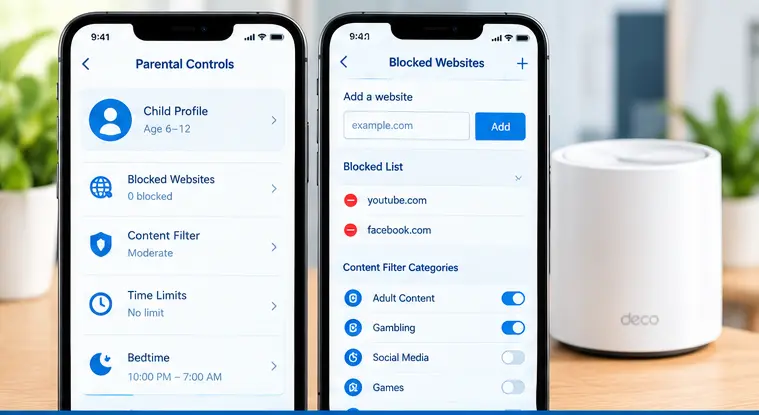
3. Check Blocked Websites and Content Filter Categories
If Deco parental controls are not blocking websites, the problem may be with the website entry, content filter category or the way the site is accessed.
A domain may use several related addresses. Blocking one domain does not always block every related domain, app or subdomain.
Try these steps:
- Open the Deco app and select Parental Controls.
- Choose the profile associated with the affected device.
- Open Blocked Websites, Web Filter or the equivalent content control setting.
- Confirm that the intended website or category is listed.
- Check for spelling mistakes or an incorrect domain.
- Review the content filter categories and confirm that the relevant category is enabled.
- Save any changes.
- Close the browser on the test device and reopen it.
- Test the website again using the home Deco Wi-Fi connection.
If the website still opens, try clearing the browser’s cached page or testing the site in a fresh browser session. This can help distinguish an old cached page from a new network request.
Do not assume that every web filter can block every page or service. Websites can use third-party domains, encrypted connections, in-app content or other delivery methods that may behave differently from ordinary browser traffic.
Also, test only the website or content you intended to restrict. Do not rely on a single test page to prove that every filter category is working.
4. Fix Deco Bedtime or Schedule Restrictions That Do Not Work
The TP-Link Deco bedtime schedule not working issue can happen when the schedule uses the wrong days, start time, end time or time zone.
For example, a weekday bedtime schedule will not necessarily behave the same way on a weekend. A schedule may also be configured correctly but applied to a profile that does not contain the affected device.
How to check the bedtime schedule:
- Open the Deco app.
- Go to Parental Controls and select the correct profile.
- Open Bedtime, Offtime or the equivalent scheduling option.
- Confirm that the feature is enabled.
- Review the selected days, such as every day, weekdays, weekends or custom days.
- Check the start and end times.
- Verify the phone’s time zone and the time settings used by the Deco system, where available.
- Save the schedule.
- Test it with a short, controlled schedule when practical.
Make sure you understand the schedule’s purpose. Bedtime or Offtime restrictions are intended to restrict internet access during selected periods; they do not necessarily turn off the device itself.
If the schedule crosses midnight—for example, from 9:00 PM to 7:00 AM—check how your version of the app displays the start and end times. Do not assume that the restriction should end on the same calendar day it starts.
Some flexible scheduling options require HomeShield Advanced Parental Controls. If you cannot select custom days or other scheduling options, check the feature requirements for your model and region.
5. Troubleshoot Incorrect Screen-Time or Daily Time Limits
If Deco says your child has used all their screen time even though they have not been actively browsing for that long, the reported time may include background internet activity.
Note that parental controls can count internet activity generated by the device, including background processes such as iCloud communications. As a result, the reported online time may be greater than the time the child spent actively using an app or browser.
How to troubleshoot the time limit:
- Open the child’s profile in the Deco app.
- Review the online-time report for the current day.
- Check the daily time limit and the days to which it applies.
- Confirm that the correct devices are assigned to the profile.
- Look for devices that remain connected to Wi-Fi when not in use.
- Disconnect unused devices from Wi-Fi when appropriate.
- Test the limit again and compare the usage report with the device’s actual activity.
Remember that network-based time limits measure internet usage, not necessarily the time someone is looking at a screen. A device can exchange data in the background even when its screen is off.
If the limit appears to reset at an unexpected time, check the schedule and date settings. If the feature is unavailable or locked, confirm whether your Deco model and subscription support it.
6. Check HomeShield Subscription and Feature Compatibility
Not every Deco model or HomeShield plan supports every parental control feature.
Basic content filtering and more advanced controls may have different requirements. Depending on the device, region, app version and subscription, features such as flexible bedtime schedules, time limits, advanced content filters and app controls may be restricted or unavailable.
How to check compatibility:
- Open the Deco app.
- Navigate to the HomeShield or Parental Controls section.
- Look for subscription information, upgrade notices or locked features.
- Confirm your Deco model and hardware version.
- Check the official product page and support documentation for your region.
- Verify that the feature you want is supported by your specific model and current software.
- If a feature displays a lock icon or asks you to upgrade, it may require a subscription rather than being broken.
Do not purchase a subscription before checking the exact feature requirements. Availability can vary across product generations and regions.
7. Check VPNs, Private DNS and Alternative Internet Connections
If website blocking works on one device but not another, check whether the affected device uses a VPN, custom DNS service, mobile data or another internet connection.
These services can change how a device routes its traffic or resolves website addresses. As a result, network-level content filtering may not behave as expected.
Check the following:
- VPN apps: Temporarily disconnect the VPN on a device you manage and retest the restriction.
- Private DNS: If the device uses a custom Private DNS provider, check whether it affects the filtering behavior.
- Mobile data: Confirm that the phone is using your Deco Wi-Fi rather than cellular data.
- Guest Wi-Fi or another router: Make sure the device is connected to the network where the parental control profile is configured.
- Browser or app behavior: Some apps use services or connections that may not be filtered in the same way as a normal website.
Change one setting at a time and test again. If turning off a VPN or custom DNS makes the rule work, review that service’s configuration before deciding whether to keep it disabled.
Do not disable security or privacy tools permanently without understanding their purpose. Also remember that Deco’s network-based parental controls cannot be expected to govern traffic that bypasses the Deco network entirely.
8. Update the Deco Firmware and Mobile App
Outdated firmware or an older Deco app can cause settings menus to differ, features to be unavailable or configuration changes to behave unexpectedly.
Updating is a useful troubleshooting step after you have checked the device profile and parental control rules.
How to update safely:
- Open the Deco app.
- Find the firmware update section, usually under More, System or the network settings.
- Check whether an update is available for your Deco units.
- Follow the on-screen instructions to install supported firmware updates.
- Update the Deco app through the official app store on your phone.
- Wait for all Deco units to return to their normal online status.
- Recheck the parental control settings and test the affected device.
- Firmware update menus vary by model and app version. Use the instructions provided for your specific Deco unit.
Do not unplug a Deco unit while its firmware is updating. If you have a multi-unit mesh system, allow all units to finish updating before evaluating the results.
If tplink blinking red light after update then check our blog to troubleshoot this issue.
9. Restart the Deco Network and Refresh the Connection
If all the settings look correct but the changes still do not take effect, a restart may clear a temporary network or connection problem. Before restarting, save your settings and make sure you know how to identify your main Deco unit.
Try this sequence:
- Close the Deco app and reopen it.
- Confirm that your main Deco and satellite units are online.
- Restart the affected client device.
- If the issue remains, restart the Deco network using the manufacturer’s recommended procedure.
- Wait for the network to become fully operational.
- Reconnect the affected device to Wi-Fi.
- Recheck the assigned profile and test the restriction.
A restart is different from a factory reset. Restarting normally preserves your configuration, while a factory reset can erase network settings and require Tplink deco setup again.
Do not reset the entire Deco system just because a bedtime schedule or website filter is not working. Try the targeted troubleshooting steps first.
10. Check Router Mode and Network Topology
Deco parental controls operate within the supported Deco network configuration. If your Deco is connected to another router, an ISP gateway or a separate access point, the network layout may affect how traffic is handled.
Deco systems can support different operation modes depending on the model, including Router and Access Point modes. The features available can differ by mode and firmware.
How to check your network setup:
- Open the Deco app and find the operation mode setting, if available.
- Confirm whether Deco is running in Router or Access Point mode.
- Identify whether another router or ISP gateway is providing routing, DNS or filtering services.
- Confirm that the affected device is connected to the Deco network and not to a separate Wi-Fi network.
- Review the feature support notes for your exact model and operation mode.
- Test the parental control feature again after verifying the configuration.
Do not switch operation modes without understanding the impact. Changing from Router mode to Access Point mode or the reverse, may affect DHCP, network addressing, port forwarding and other network settings.
If your network has multiple routers, avoid making several topology changes at once. Confirm the supported configuration with TP-Link documentation or support before making major changes.
Fix Specific TP-Link Deco Parental Control Problems
Use this quick guide to narrow down the problem after completing the basic checks.
| Specific problem | Recommended action |
| Deco parental controls not blocking websites | Verify the profile, domain entry, content categories, VPN and DNS settings. |
| TP-Link Deco bedtime schedule not working | Check enabled days, start/end times, time zone, device assignment and subscription requirements. |
| Deco parental controls time limit not working | Review usage reports, background activity, profile assignments and daily limit settings. |
| Website blocking works on one device but not another | Compare Wi-Fi connection, private MAC settings, VPN and DNS configuration. |
| Advanced controls are missing | Confirm model compatibility, firmware version, region and HomeShield subscription. |
| Changes are not applying | Save the settings, refresh the app, reconnect the client and restart the network if necessary. |
How to Verify That Deco Parental Controls Are Working
After making changes, test the affected feature rather than assuming it has been fixed.
Test Website Blocking
- Connect the test device to your Deco Wi-Fi.
- Confirm that it appears in the correct profile.
- Open the blocked website in a fresh browser session.
- Check whether access is restricted as expected.
If the website still loads, verify the domain entry and check for VPN, DNS or alternative network use.
Test Bedtime or a Schedule
- Review the selected days and schedule times.
- Use a short test window if the app permits it.
- Confirm that the affected device is assigned to the controlled profile.
- Check whether internet access is restricted during the configured period.
- Recheck the schedule after the test.
Test Time Limits
- Review the profile’s current online-time report.
- Confirm the configured daily limit.
- Keep in mind that background network activity can contribute to reported usage.
Compare the report with the device’s network activity rather than only its screen-on time. Avoid testing multiple changes at once. Testing one feature at a time makes it easier to identify the actual cause.
When Should You Contact TP-Link Support?
Contact TP-Link support if parental controls continue to fail after you verify the profile, MAC address, filters, schedules, subscription and software versions.
You should also seek assistance if the app repeatedly loses your configuration, the affected device cannot be identified reliably or the feature is unavailable despite being listed as supported for your model.
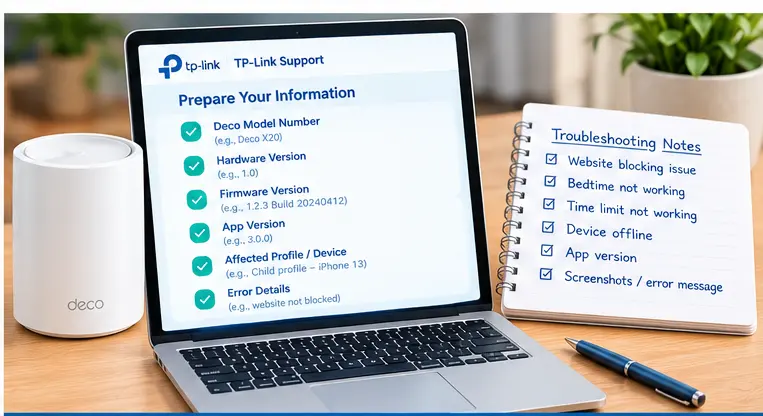
Before contacting support, prepare the following information:
| Information to prepare | Why it helps |
| Deco model and hardware version | Identifies the exact product and supported features. |
| Firmware and Deco app versions | Helps determine whether a software issue may be involved. |
| Operation mode and network layout | Helps identify interactions with another router or gateway. |
| Affected device and profile details | Helps diagnose incorrect device assignment or MAC recognition. |
| Screenshots and exact symptoms | Shows whether website blocking, bedtime or time limits are failing. |
Do not include passwords or other sensitive account information in public posts or screenshots.
Frequently Asked Question
Check that the device is assigned to the correct profile and that the website or relevant content category is actually blocked. Then check whether the device uses a VPN, custom DNS, mobile data or a different Wi-Fi network. A randomized MAC address can also prevent Deco from consistently identifying the device.
Verify that bedtime is enabled and that the correct days, start time and end time are selected. Confirm that the device is assigned to the profile with the schedule. Also check the time zone, feature compatibility and any HomeShield subscription requirements.
Yes. Deco may identify a device using its MAC address. If the device changes its private or randomized address, it may appear as a different client or show an offline status in the profile. Check the Wi-Fi privacy settings for your home network and use a stable address if necessary.
Not every feature requires a paid subscription, but some advanced controls do. Requirements vary by Deco model, region, firmware and app version. Check the feature details in the Deco app and the official documentation before subscribing.
Deco’s time limits may count background internet activity, not just time spent actively looking at a screen. For example, cloud syncing and other background processes may use internet traffic. Review the usage report and the devices assigned to the profile before changing the limit.
Feature availability can differ between Router and Access Point modes, depending on the Deco model and firmware. Check the official documentation for your specific device and operation mode. Do not assume every parental control feature works identically in both modes.
Conclusion
When TP-Link Deco parental controls are not working, start by checking the affected device’s profile and MAC address. Then review blocked websites, content filters, bedtime schedules, time limits and HomeShield feature requirements.
If the settings are correct, check VPNs and DNS configuration, update the app and firmware and restart the network if necessary. Finally, test the affected feature on the Deco Wi-Fi and confirm that the device is correctly identified.
A factory reset tplink deco should be a last resort—not the first step for a website blocking or bedtime schedule issue. If the problem persists, contact TP-Link support with your model details, software versions and a clear description of what is happening.