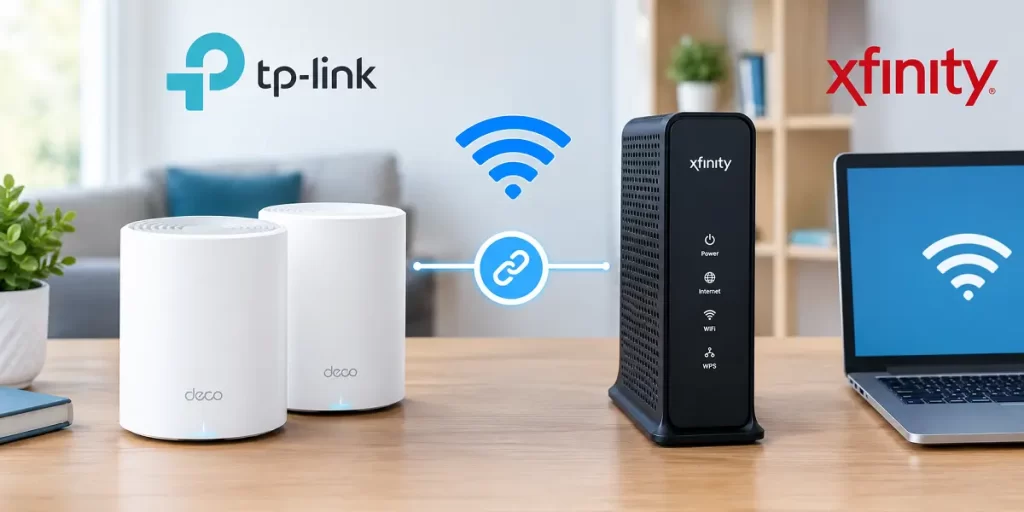
Want to replace or extend your Xfinity WiFi with a TP-Link Deco mesh system? Learning how to connect TP-Link Deco to Xfinity is straightforward once you know whether you have an Xfinity modem, an Xfinity Gateway or a separate Xfinity router.
TP-Link Deco can work with Xfinity in several ways. You can use Deco as your main router, keep the Xfinity Gateway as the router and use Deco in Access Point mode, or connect Deco directly to a standalone Xfinity-compatible modem. The right setup depends on which Xfinity equipment you have and which device you want managing your home network.
This guide explains the complete TP-Link Deco Xfinity setup, including bridge mode, router mode, Access Point mode, multiple Deco units, slow speeds and common connection problems.
To connect Deco to Xfinity, connect the main Deco unit to your Xfinity modem or Gateway with an Ethernet cable and complete setup through the Deco app. If you want Deco to be your primary router, put an Xfinity Gateway into Bridge Mode first. If Xfinity should remain the main router, use Deco in Access Point mode.
Can You Use TP-Link Deco with Xfinity?
Yes. TP-Link Deco works with Xfinity when the Xfinity equipment provides a compatible Ethernet internet connection.
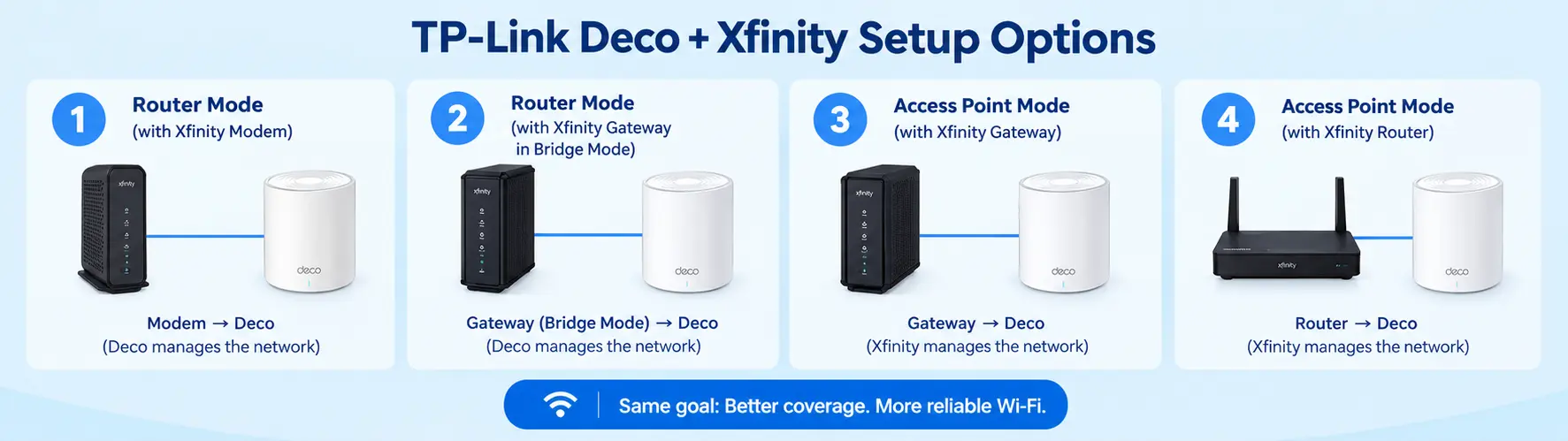
The setup depends mainly on whether your Xfinity equipment is:
- A standalone modem
- An Xfinity Wireless Gateway
- A modem/router combination
- A third-party modem approved for Xfinity service
An Xfinity Wireless Gateway combines modem and router functions in one device. If you connect a Deco system to it without changing the configuration, both devices may try to perform routing functions. Xfinity recommends Bridge Mode when you want your own router to take over the routing role.
TP-Link also supports using Deco with an existing router in either Router Mode or Access Point Mode.
TP-Link Deco + Xfinity Setup Options
| Xfinity Equipment | Deco Mode | Typical Connection |
| Standalone Xfinity-compatible modem | Router Mode | Modem → Main Deco |
| Xfinity Gateway in Bridge Mode | Router Mode | Gateway → Main Deco |
| Xfinity Gateway in normal router mode | Access Point Mode | Gateway → Main Deco |
| Existing Xfinity router | Access Point Mode | Xfinity router → Main Deco |
| Modem/router combination | Router or AP | Depends on which device manages routing |
The important thing is to avoid having two devices unnecessarily perform the same routing functions.
What You Need Before Connecting Deco to Xfinity
Before beginning the Xfinity TP-Link Deco setup, prepare the following:
- TP-Link Deco units
- Xfinity internet service
- Xfinity modem or Gateway
- Ethernet cable
- Smartphone or tablet
- Deco app
- TP-Link ID
- Xfinity account information if required
- Working internet connection
TP-Link says Deco setup is performed through the Deco app on Android or iOS. During setup, the main Deco is connected to the modem using Ethernet and the app guides you through the internet connection configuration.
If you’re using your own modem with Xfinity, make sure the modem is compatible with your service and speed tier. Xfinity provides a device-compatibility lookup for customers using their own equipment.
Pre-Setup Checklist
| Item | What to Check |
| Xfinity internet | Internet service is active |
| Modem/Gateway | Online and working normally |
| Deco units | Correct model and powered off initially |
| Ethernet cable | Working cable available |
| Deco app | Installed on your phone |
| TP-Link ID | Available or ready to create |
| WiFi | Phone has working internet during setup |
| Xfinity Gateway | Know whether it should remain a router or use Bridge Mode |
How to Connect TP-Link Deco to Xfinity
Once everything is ready, follow these steps.
Step 1: Download the Deco App
Install the TP-Link Deco app on your Android phone, iPhone, or tablet.
Open the app and sign in with your TP-Link ID. If you do not already have one, create an account when prompted.
TP-Link states that Deco setup requires the Deco app and a TP-Link ID or existing TP-Link Cloud account.
Step 2: Choose the Main Deco
Take one Deco unit and place it close to your Xfinity modem or Gateway for the initial setup.
This unit becomes the main Deco. Do not place the satellite units around the house yet. It is easier to complete the main Deco setup first and add the additional units afterward.
Step 3: Connect the Ethernet Cable
Connect one end of the Ethernet cable to an available Ethernet port on the Xfinity modem or Gateway.
Connect the other end to the main Deco.
The exact port arrangement varies by Deco model, but modern Deco systems generally use Ethernet ports that can function as WAN/LAN ports.
Step 4: Power On the Equipment
Power on the Xfinity modem or Gateway and the main Deco. Give the devices a few moments to start.
The Deco LED should eventually indicate that the unit is ready for setup. TP-Link notes that the exact LED behavior varies by model, so check your model’s guide if the expected light does not appear.
Step 5: Start Setup in the Deco App
Open the Deco app and select the option to set up a new Deco network. Choose your Deco model when prompted. The app will guide you through the connection process and ask about your internet connection type.
For many cable internet installations, the connection can use Dynamic IP, but the correct option depends on your Xfinity setup. Follow the option shown by the Deco app rather than selecting a connection type randomly.
Step 6: Create Your Deco WiFi Network
The app will ask you to create a WiFi name and password. You can create a completely new network name, or you may choose to use the same WiFi name and password as your previous network.
Using the same credentials can make reconnecting existing devices easier because many devices will automatically reconnect.
Step 7: Complete the Main Deco Setup
Follow the remaining instructions in the app. Once Deco reports that the network is ready, connect your phone to the new Deco WiFi and test the internet.
Open a website or run a speed test. If everything works, the basic TP-Link Deco with Xfinity connection is complete.
Step 8: Add the Remaining Deco Units
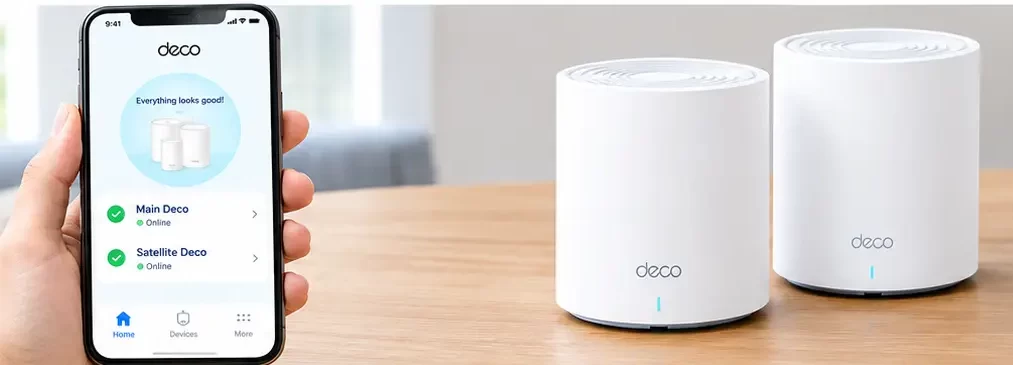
Once the main Deco is working, add the remaining units through the Deco app. Place each satellite Deco in a location where it can maintain a good connection with the main unit or another supported Deco unit.
TP-Link recommends setting up the main Deco first and then adding additional units.
Should Xfinity Gateway Be in Bridge Mode?
If you want Deco to operate as your main router, Bridge Mode is generally the appropriate configuration when you’re using an Xfinity Wireless Gateway.
An Xfinity Gateway combines modem and router functions. When Bridge Mode is enabled, Xfinity says the Gateway’s routing functionality is disabled so that your personal router can handle the home network.
The basic structure becomes:
- Xfinity Gateway → Ethernet → Main Deco → Deco WiFi devices
With this setup, Deco manages functions such as routing, DHCP and the Deco mesh network. Xfinity’s current Bridge Mode instructions use the Gateway’s Admin Tool and the Gateway > At a Glance section to enable Bridge Mode. The exact interface can vary by Gateway model.
Important Bridge Mode Note
When Bridge Mode is enabled, the Xfinity Gateway’s private WiFi network is turned off and Xfinity notes that certain Gateway features, such as its WiFi Extenders, are unavailable while Bridge Mode is active.
So do not enable Bridge Mode simply because you have Deco. Use it when you specifically want Deco to replace the Gateway’s routing function.
TP-Link Deco Router Mode vs Access Point Mode with Xfinity
This is one of the most important choices in a Deco mesh with Xfinity setup.
Router Mode
In Router Mode, Deco becomes the primary router.
A typical setup is:
- Xfinity modem/Gateway → Main Deco → Satellite Deco → Devices
If you are using an Xfinity Gateway, putting it in Bridge Mode avoids having both the Gateway and Deco perform routing.
Access Point Mode
In Access Point Mode, the existing Xfinity router continues managing the network while Deco provides WiFi coverage.
The structure looks like:
- Xfinity Gateway → Main Deco → Deco satellites
TP-Link says Access Point Mode extends the existing wired network without creating a separate subnet, while the existing router handles DHCP and other network functions.
Router Mode vs Access Point Mode
| Feature | Deco Router Mode | Deco Access Point Mode |
| Main router | Deco | Xfinity Gateway/router |
| DHCP | Deco | Xfinity router |
| Xfinity Gateway | Usually Bridge Mode if using it as modem | Normal router mode |
| Deco creates its own network | Yes | No |
| Deco advanced routing features | More available | Some unavailable |
| Best for | Replacing Xfinity routing | Keeping Xfinity routing |
| Setup complexity | Moderate | Usually simpler |
If you want maximum control through Deco, Router Mode is usually the relevant configuration. If you simply want better WiFi coverage while keeping the Xfinity Gateway in charge, Access Point Mode is the simpler approach.
How to Connect TP-Link Deco to an Xfinity Gateway
If your Xfinity device is a Gateway containing both modem and router functions, you have two main choices.
Option 1: Use Gateway Bridge Mode
If Deco should be your primary router:
- Log in to the Xfinity Gateway’s administration interface.
- Enable Bridge Mode.
- Wait for the Gateway to restart.
- Connect the Gateway to the main Deco using Ethernet.
- Open the Deco app.
- Complete the Deco setup in Router Mode.
- Connect your devices to the Deco WiFi.
Xfinity states that once Bridge Mode is enabled, you can connect your personal router to an Ethernet port on the Gateway.
Option 2: Keep Xfinity as the Router
If you do not want to change the Xfinity Gateway configuration:
- Leave the Gateway in normal router mode.
- Connect the main Deco to the Gateway using Ethernet.
- Set up Deco.
- Change Deco to Access Point Mode.
- Add the remaining Deco units.
TP-Link specifically supports this arrangement for homes where an existing router continues managing the network.
How to Connect TP-Link Deco to an Xfinity Modem
If you have a standalone modem instead of an Xfinity Gateway, the setup is simpler.
Connect:
- Xfinity modem → Ethernet cable → Main Deco
Then:
- Power off the modem.
- Connect the Ethernet cable from the modem to the main Deco.
- Power on the modem.
- Wait for the modem to reconnect to Xfinity.
- Power on the Deco.
- Open the Deco app.
- Select your Deco model.
- Follow the internet setup instructions.
- Create your Deco WiFi name and password.
- Test the internet connection.
TP-Link confirms that Deco can work with cable modems and that the app guides users through the internet connection type during setup. If you use a customer-owned modem, make sure it is approved for your Xfinity service and speed tier before troubleshooting the Deco connection.
How to Connect Multiple Deco Units to Xfinity
After the main Deco is working, you can add additional units.
For a wireless mesh:
- Xfinity → Main Deco )) Satellite Deco )) Satellite Deco
For supported Ethernet backhaul:
- Xfinity → Main Deco → Ethernet → Satellite Deco
TP-Link says multiple Deco units can be connected directly to an existing router when Deco is in Access Point Mode. In Router Mode, only the main Deco should normally connect directly to the existing router to avoid a network loop.
This distinction is important if you are wiring multiple Deco units.
TP-Link Deco Connected to Xfinity but No Internet
If Deco completes setup but has no internet, first determine whether the problem is with Xfinity or the Deco configuration. Check the Xfinity connection by connecting another device directly to the Gateway or modem. If the direct connection also has no internet, the issue may be with the Xfinity service, modem, or Gateway.
If direct internet works but Deco does not, check:
- Ethernet cable
- Deco connection
- Deco operation mode
- Xfinity Bridge Mode
- Internet connection type
- Deco app status
- Router restart
If you recently switched from an Xfinity Gateway to Deco Router Mode, restart the Xfinity equipment and Deco before testing again.
Xfinity WiFi Works but TP-Link Deco Does Not
If Xfinity WiFi works normally but Deco has no internet, the Xfinity service itself is probably not the first thing to investigate.
Try this sequence:
- Disconnect the Ethernet cable from Deco.
- Restart the Xfinity Gateway or modem.
- Wait until Xfinity internet is fully restored.
- Restart the Deco.
- Reconnect the Ethernet cable.
- Open the Deco app.
- Check the internet status.
- Test a device connected directly to Deco.
If the Xfinity Gateway is supposed to be in Bridge Mode, verify that Bridge Mode is still enabled.
If you are using Deco Access Point Mode, make sure the Xfinity router’s DHCP service remains enabled. TP-Link states that Deco does not provide DHCP in Access Point Mode because the root router handles IP address assignment.
TP-Link Deco Slow Speed with Xfinity
A Deco system can show slower speeds even when the Xfinity plan itself is working normally. Start by comparing speeds.
Test:
- A device connected directly to the Xfinity Gateway/modem.
- A device connected to the main Deco.
- A device connected to a satellite Deco.
If the direct Xfinity connection is fast but a satellite Deco is slow, the problem may be related to the mesh link, placement, wireless interference, or backhaul.
If the main Deco is also slow, check the Ethernet cable, Deco configuration and connection between the Xfinity equipment and Deco.
Speed Troubleshooting
| Test Result | Possible Cause | What to Check |
| Xfinity direct connection is slow | ISP/modem/service issue | Xfinity service and modem |
| Main Deco is slow | Cable or Deco setup | Ethernet, mode, app settings |
| Main Deco is fast but satellite is slow | Weak mesh link | Satellite placement |
| Wired Deco is fast but wireless is slow | WiFi interference | Device location and wireless environment |
| Only one device is slow | Client-device issue | Device WiFi adapter/settings |
| Speed drops at busy times | Network congestion | Multiple active devices |
If you’re dealing with a TP-Link Deco slow speed problem, test from the main Deco before moving satellites around. This tells you whether the issue starts at the Xfinity-to-Deco connection or farther into the mesh.
Common TP-Link Deco + Xfinity Setup Problems
Here are some of the most common problems users encounter during an Xfinity TP-Link Deco setup.
Double NAT
This can happen when both the Xfinity Gateway and Deco are operating as routers. If you want Deco to be the primary router, consider putting the Xfinity Gateway into Bridge Mode. If you want to keep the Xfinity Gateway as the router, use Deco Access Point Mode instead.
Wrong Deco Operation Mode
Using Router Mode while keeping another router active can create unnecessary network complexity.
Check:
- Deco app → More → Advanced → Operation Mode
TP-Link provides Router Mode and Access Point Mode for different network configurations.
Multiple Deco Units Wired Incorrectly
In Router Mode, TP-Link recommends connecting only the main Deco directly to the existing router. Multiple direct connections can create a network loop.
Weak Satellite Connection
If the main Deco works well but a satellite is slow, move the satellite closer to the main unit. Do not place a satellite at the exact point where WiFi is already extremely weak. It needs a usable connection to the mesh network.
Ethernet Cable Problem
A damaged or poor-quality Ethernet cable can cause unstable or slow connections. Replace the cable if the Deco repeatedly disconnects or negotiates at an unexpected speed.
Frequently Asked Questions
Yes. You can connect the main Deco to an Xfinity modem or Gateway using an Ethernet cable. If you have an Xfinity Gateway and want Deco to act as the main router, use Bridge Mode. If the Gateway should remain the router, configure Deco in Access Point Mode.
Yes. TP-Link Deco can work with Xfinity internet through a compatible modem or Gateway. TP-Link supports Deco with existing routers in both Router Mode and Access Point Mode.
Not always. Bridge Mode is useful when an Xfinity Gateway should function primarily as the modem while Deco handles routing. If you want to keep the Xfinity Gateway as the router, Deco can instead operate in Access Point Mode.
It depends on which device you want managing the network. Choose Router Mode when Deco should be the primary router. Choose Access Point Mode when the Xfinity Gateway or another existing router should continue handling DHCP and routing. TP-Link officially supports both configurations.
Connect the main Deco to the Xfinity Gateway with an Ethernet cable. Then choose between two configurations: enable Bridge Mode on the Gateway and use Deco Router Mode, or leave the Gateway as a router and configure Deco in Access Point Mode. The correct choice depends on how you want your home network managed.
Final Thoughts
The easiest way to connect TP-Link Deco to Xfinity is to first identify what Xfinity equipment you have. If you have a standalone modem, connect the main Deco directly to it and complete setup through the Deco app. If you have an Xfinity Gateway, decide whether Deco or Xfinity should manage the network.
For a Deco-controlled network, Bridge Mode on the Xfinity Gateway allows Deco to take over routing. For a network that continues using the Xfinity Gateway as the router, Access Point Mode lets Deco expand your WiFi coverage without creating another routed network.
Once the main Deco is online, add your satellite units, test the connection in several areas of your home and check speeds from the main Deco before troubleshooting individual satellites.
With the correct TP-Link Deco Xfinity setup, you can use Deco mesh WiFi to provide broader coverage while keeping your Xfinity internet service as the connection to your home.