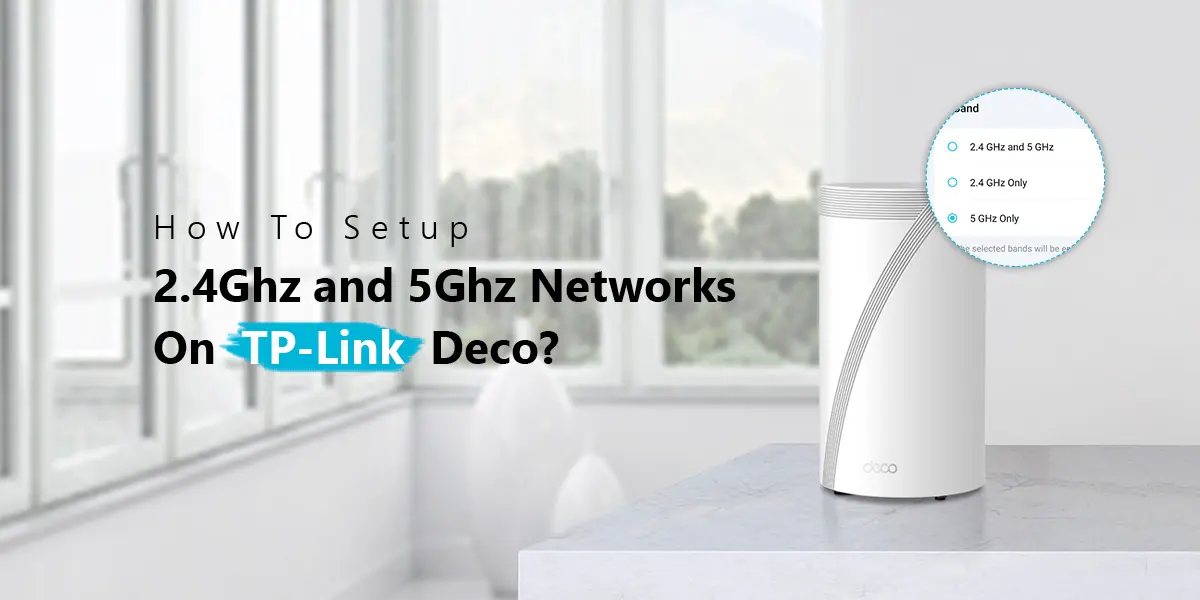
For tp-link deco 2.4ghz 5ghz setup, open the Deco app, go to WiFi Settings and disable Smart Connect if your Deco model supports separate bands. Then create different SSIDs for both networks and adjust channel, security and bandwidth settings for better performance.
If you recently bought a TP-Link Deco mesh system, you may notice that it broadcasts only one WiFi name. This is because Deco uses Smart Connect. It automatically switches your devices between the 2.4GHz and 5GHz bands.
For many users, this works perfectly. You do not have to think about which band to use. But sometimes it creates problems.
- Maybe your smart bulb only supports 2.4GHz.
- Maybe your security camera refuses to connect.
- Maybe your printer cannot detect your WiFi.
- Or maybe you simply want better control over your network.
I faced the same issue while installing a smart doorbell at my parents’ house. The Deco mesh kept pushing my phone to the 5GHz band. The doorbell only supported 2.4GHz. It failed every time. After changing the WiFi settings, the setup became easy.
That is why many people search for tp-link deco 2.4ghz 5ghz setup.
This guide explains everything in simple way.
You will learn:
- how to set up dual band on TP-Link Deco
- how to separate 2.4GHz and 5GHz Deco
- Deco mesh band settings
- channel width settings
- WiFi security options
- the best SSID naming practices
- Common mistakes to avoid
By the end, you will know which settings are best for your home.
Deco Smart Connect vs. Separate 2.4GHz/5GHz Bands
The first thing you should understand is Smart Connect. It decides which WiFi band your device should use. Instead of creating two different WiFi names, Deco creates only one network. Your phone, laptop, TV or gaming console automatically moves between bands. This sounds convenient. In many homes, it actually is.
However, not every device likes automatic switching. Older smart home devices often work only on 2.4GHz. Some cameras disconnect randomly. Some IoT devices fail during pairing.
That is when separate WiFi bands become useful.
| Feature | Smart Connect | Separate Bands |
| One WiFi name | Yes | No |
| Manual device selection | No | Yes |
| Easy for beginners | Yes | Moderate |
| Better for smart home devices | Sometimes | Yes |
| Better device control | No | Yes |
| Recommended for IoT devices | No | Yes |
If your Deco model allows separate bands, you can disable Smart Connect and create two WiFi names.
For example:
- Home WiFi (5GHz)
- Home WiFi 2.4G
This makes connecting smart devices much easier.
What Is Band Steering in Mesh WiFi?
Band steering is the technology behind Smart Connect. It monitors your device. Then it decides whether 2.4GHz or 5GHz is better. Imagine walking around your home. When you are close to the Deco unit, your phone may use 5GHz because it offers higher speed. As you move upstairs or into the backyard, Deco automatically shifts your phone to 2.4GHz because it travels farther.
You do not notice this change. Everything happens automatically. This process is called band steering mesh WiFi.
- It improves roaming.
- It reduces dropped connections.
- But it also means you lose manual control.
That is why many advanced users prefer separate WiFi bands.
How to Set Up Dual Band on TP-Link Deco
Now let’s configure the network. The exact menu may vary slightly depending on your Deco model and firmware version. Still, the process is almost the same.
Step 1 – Open the Deco App and Access Network Settings
- First, connect your phone to your Deco WiFi.
- Open the Deco app.
- Sign in with your TP-Link account.
- Tap More.
- Now open WiFi Settings.
Here you will see your current WiFi name and password.
- Some newer models also display Smart Connect.
- Before changing anything, make sure your Deco firmware is updated.
- Older firmware versions may not support the latest WiFi features.
- If you notice bugs or missing options, consider update your Deco firmware before continuing.
Step 2 – Turn Off Smart Connect to Separate Bands
Now look for Smart Connect. If your Deco model supports separate SSIDs, disable Smart Connect. Once disabled, you can assign different names to each WiFi band.
For example:
| WiFi Band | Example SSID |
| 2.4GHz | Home-2.4G |
| 5GHz | Home-5G |
Save the settings. The Deco network will restart.
Reconnect your phone using the new WiFi name.
Important:
- Not every Deco model allows separate bands.
- Some entry-level models always keep Smart Connect enabled.
- If you cannot find this option, your model may not support it.
Step 3 – Configure WiFi Networks on Deco App
- Now customize both networks.
- Keep the settings simple.
- Use a strong password.
- Avoid very long WiFi names.
- Simple names are easier to identify.
- If family members visit often, they also connect faster.
When you configure WiFi networks on Deco app, pay attention to:
- WiFi password
- Security mode
- Band settings
- Guest network
- Mesh optimization
These small changes improve stability.
SSID Naming Best Practices for Dual-Band Routers
Many people overlook WiFi names. They matter more than you think. A clear name helps you instantly know which network you are using.
Here are some naming ideas.
| 2.4GHz | 5GHz |
| Home-24 | Home-5G |
| Office24 | Office5G |
| Family24 | Family5G |
| Living24 | Living5G |
Keep passwords identical if possible. This reduces confusion. Avoid adding personal information.
Do not use:
- Your phone number
- House address
- Full name
- These details reduce privacy.
Another useful tip is to avoid special characters in SSIDs. Some older smart devices fail to detect networks containing symbols. Simple names work better.
For most homes, using the same naming pattern keeps everything organized.
For example:
- Home-2.4G
- Home-5G
Months later, you will still remember which network is which. That saves time whenever you connect a new smart plug, camera, printer or streaming device.
How to Separate 2.4GHz and 5GHz on Deco
After turning off Smart Connect, you can use two different WiFi networks if your Deco model supports it. This gives you more control. Now you can decide which device connects to which band.
For example:
| Device | Recommended Band | Why? |
| Smart Bulbs | 2.4GHz | Better compatibility |
| Security Cameras | 2.4GHz | Longer range |
| Smart Plugs | 2.4GHz | Stable connection |
| Smartphones | 5GHz | Faster browsing |
| Gaming PC | 5GHz | Lower latency |
| Smart TV | 5GHz | Smooth 4K streaming |
| Laptop | 5GHz | Faster downloads |
This tp-link deco 2.4ghz 5ghz setup works well in most homes.
I recently helped a friend install six smart switches in a two-story house. Every switch failed during setup because the phone kept connecting to the 5GHz band. Once we connected both the phone and the switches to the 2.4GHz network, every device paired within a few minutes.
This is one of the biggest reasons users want to separate 2.4GHz and 5GHz Deco networks.
However, remember that not every TP-Link Deco model allows separate SSIDs. Some newer mesh systems are designed to keep Smart Connect enabled all the time for automatic optimization.
If your model does not support separate bands, you can still temporarily force many smart devices to connect by moving farther from the Deco unit or by using the option to change 5GHz to 2.4GHz on Deco during device setup, if available.
Deco Mesh Band Settings Explained
Many users stop after changing the WiFi name. That is only half the tp-link deco 2.4ghz 5ghz setup. Your Deco mesh system also includes several settings that affect speed, coverage and stability. Understanding them helps you get better performance.
Channel Width Settings — 20/40/80 MHz
Channel width determines how much wireless space your WiFi uses. A wider channel usually means higher speed. A narrower channel often means better stability.
| Channel Width | Best For | Performance |
| 20 MHz | Smart home devices, apartments | Most stable |
| 40 MHz | General home use | Balanced |
| 80 MHz | Gaming, streaming, large downloads | Highest speed |
Which one should you choose?
For 2.4GHz:
Use 20 MHz. It reduces interference from nearby WiFi networks. This is especially helpful in apartments where many routers are close together.
For 5GHz:
Use 80 MHz if your devices support it. It delivers much higher speeds. If your connection becomes unstable, switching to 40 MHz may improve reliability. When people talk about channel width 20/40/80 MHz, this is exactly what they mean.
Mesh Network Channel Selection
Every WiFi network uses a channel. If several nearby routers use the same one, interference increases. Your Deco system usually selects channels automatically. In most homes, this works very well. There is no need to change anything.
However, if you notice:
- Slow WiFi
- Frequent disconnects
- High latency
- Poor streaming quality
then channel congestion could be the reason.
A WiFi analyzer app can show nearby channels. If your Deco model allows manual channel selection, choose the least crowded option. Otherwise, simply restart the Deco system after nearby routers change channels. The automatic algorithm often selects a better one. This process is called mesh network channel selection.
WiFi Security Mode — WPA2 vs. WPA3
Security matters just as much as speed. Most Deco models support both WPA2 and WPA3.
Here is a quick comparison.
| Security Mode | Compatibility | Security Level |
| WPA2 | Excellent | Very Good |
| WPA2/WPA3 Mixed | Excellent | Better |
| WPA3 | Limited on older devices | Best |
For most homes, WPA2/WPA3 Mixed Mode is the best choice. New devices use WPA3 automatically. Older devices continue using WPA2. This gives you stronger protection without losing compatibility. If one of your smart home devices suddenly refuses to connect after changing the security mode, try switching back to WPA2/WPA3 Mixed Mode instead of WPA3 only. That small change often fixes the problem.
Troubleshooting Common Dual-Band Setup Issues
Even after tp-link deco 2.4ghz 5ghz setup your network correctly, you may still run into a few issues.
Most of them are easy to fix.
Problem: 5GHz WiFi does not appear
Possible reasons:
- Your phone does not support 5GHz.
- You are too far from the Deco unit.
- Smart Connect is enabled.
- The firmware is outdated.
Solution:
- Move closer to the main Deco unit.
- Restart the system.
- If needed, update your Deco firmware to access the latest fixes and improvements.
Problem: Smart devices cannot connect
This usually happens with older smart home products. Most only support 2.4GHz.
- Connect your phone to the 2.4GHz network before starting the setup.
- After pairing, many devices continue working normally.
Problem: Slow WiFi after separating the bands
Splitting the bands does not reduce your internet speed. Instead, devices stay on the network you selected.
If your speed becomes slower, check:
- Signal strength
- Device distance
- Channel congestion
- Internet plan
- Firmware version
You can also read our guide to fix TP-Link Deco slow speed for additional troubleshooting steps.
Problem: Deco app cannot save settings
Sometimes the Deco app freezes or shows an error.
Try these solutions:
- Close and reopen the app.
- Restart your phone.
- Restart the Deco system.
- Sign out and sign back in.
- Install the latest app version.
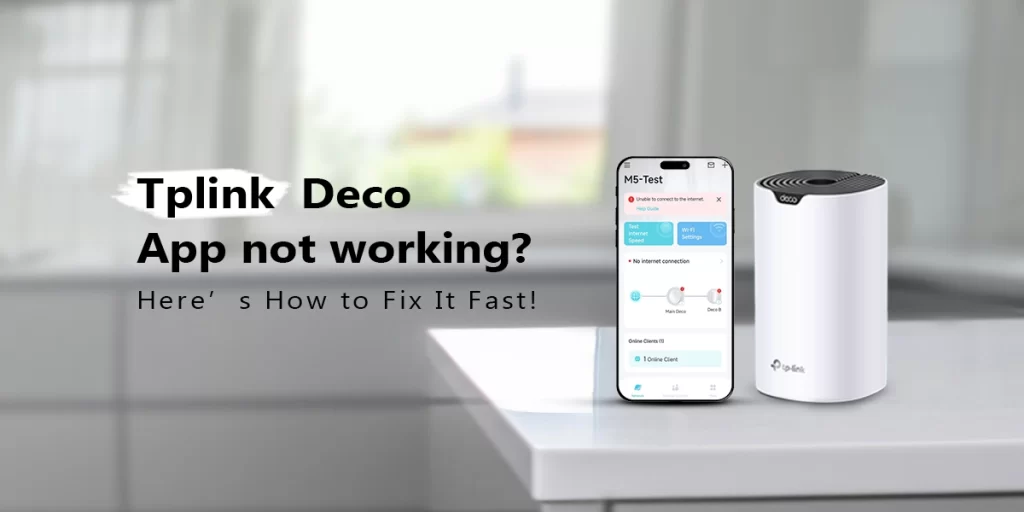
If the issue continues, see our detailed guide on TP-Link Deco app not working.
Frequently Asked Questions
Can I have separate 2.4GHz and 5GHz names on Deco?
Yes, but only if your TP-Link Deco model supports disabling Smart Connect. Once the option is available, you can create separate SSIDs for both bands. If you cannot find the setting, your model likely keeps both bands combined under one WiFi name.
Is Smart Connect better than separate bands?
Smart Connect is easier for most families because it automatically moves devices between 2.4GHz and 5GHz. However, separate bands are better when connecting smart home devices, security cameras, printers or older gadgets that only support the 2.4GHz frequency.
Why is my 5GHz not showing on Deco mesh?
The 5GHz network may not appear because Smart Connect combines both bands into one WiFi name. It can also happen if your device does not support 5GHz, you are too far from the Deco unit or the firmware needs updating.
Does splitting bands slow down my WiFi?
No. Separating the bands does not reduce internet speed. It simply gives you manual control over where devices connect. In many homes, this actually improves stability because smart devices remain on 2.4GHz while faster devices stay on 5GHz.
What channel width should I use for gaming?
For gaming on the 5GHz band, 80 MHz usually provides the best speed and lower latency if interference is low. If your connection becomes unstable or your area has many nearby WiFi networks, switching to 40 MHz can provide a more consistent experience.
Final Thoughts
tp-link deco 2.4ghz 5ghz setup is not difficult once you understand how the mesh system works. If your household mainly uses phones, laptops and smart TVs, Smart Connect is usually the easiest option. It automatically places devices on the best band without requiring any manual changes. However, if you use smart bulbs, WiFi cameras, doorbells, printers or other IoT devices, separating the bands can save a lot of frustration. It makes device pairing easier and gives you complete control over your wireless network.
For the best experience in 2026, keep these recommendations in mind:
- Use clear and simple SSID names.
- Choose WPA2/WPA3 Mixed Mode for better security and compatibility.
- Keep your Deco firmware updated.
- Use 20 MHz on the 2.4GHz band for better stability.
- Use 80 MHz on the 5GHz band for faster performance.
- Restart your mesh system after making major changes.
- Place Deco units in open areas instead of behind furniture or inside cabinets.
A few minutes spent configuring your network today can improve your WiFi performance for years. Whether you are streaming movies, attending online meetings, gaming or building a smart home, the right Deco settings help every device stay connected more reliably.