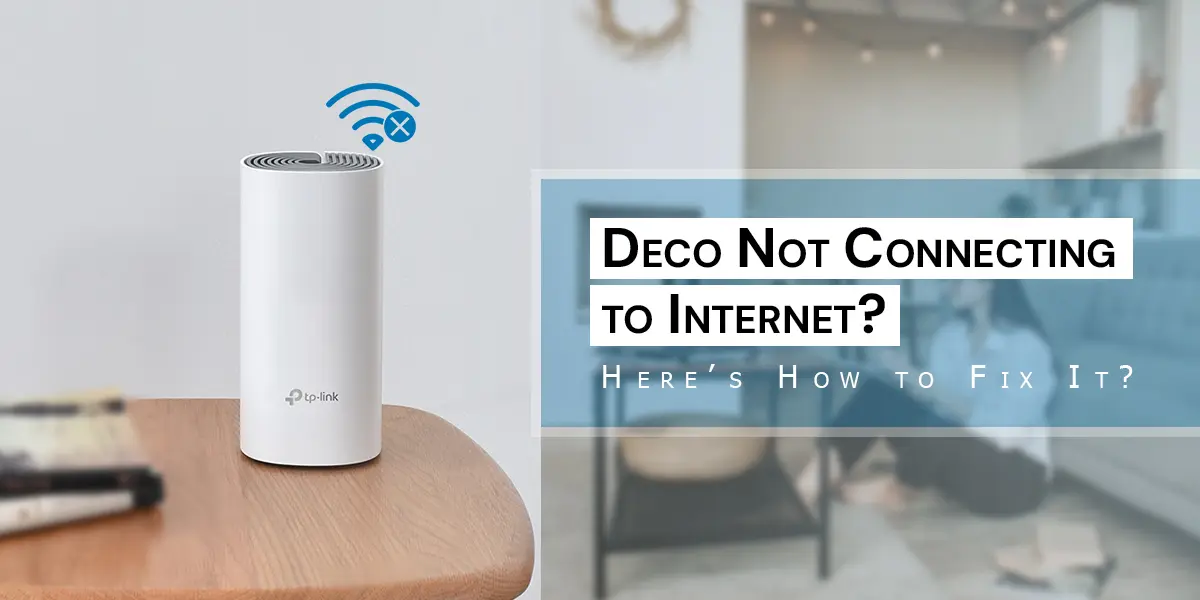
If your Deco is not connecting to the internet, restart your modem and Deco units, check the Ethernet cable and confirm that your ISP connection is working. Then check the Deco app for the connection type, firmware status and offline units.
A Deco mesh system can make home Wi-Fi much better. But like any networking device, it can sometimes stop connecting to the internet.
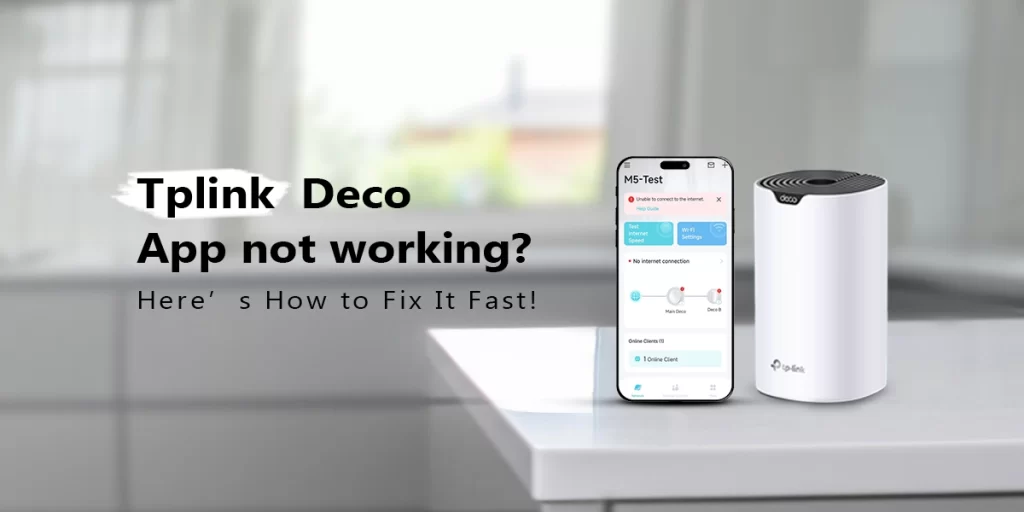
You may see a message such as “No internet connection” in the Deco app. Your Deco light may also turn red or yellow. Sometimes Wi-Fi appears on your phone, but websites do not open.
This can be confusing. The good news is that the problem is often simple to fix.
In most cases, the issue comes from one of these areas:
- Your modem or ISP connection
- A loose Ethernet cable
- Incorrect internet settings
- A firmware problem
- One Deco unit going offline
- Wi-Fi interference
- A temporary network or software issue
This guide explains how to find the real cause and fix it step by step. The steps are designed to work across TP-Link Deco systems, although the exact app screens and settings can differ slightly between models.
Why Is My Deco Not Connecting to the Internet?
If your TP-Link Deco is not connecting to the internet, first determine where the connection is failing. Your network normally works like this:
ISP → Modem/ONT → Main Deco → Satellite Deco units → Your devices
If the ISP or modem has no internet, your Deco cannot provide internet access. If the modem works but the main Deco does not, the problem may be with the cable, Deco settings or the Deco itself. If the main Deco works but one satellite is offline, the problem is probably between the Deco units rather than with your ISP.
Common causes of Deco no internet access
| Possible cause | What you may notice | What to do |
| ISP outage | All devices have no internet | Check your ISP |
| Loose Ethernet cable | Main Deco shows no internet | Reseat or replace cable |
| Modem problem | Modem has unusual lights | Restart modem/ONT |
| Incorrect connection type | Deco cannot get an IP address | Check PPPoE/Dynamic/Static IP |
| Firmware issue | Problem started after an update | Check firmware |
| Satellite offline | Only one Deco has a problem | Check that node |
| Wi-Fi interference | Internet works but is unstable | Reposition Deco |
| Temporary software issue | Restart fixes the problem | Restart the network |
A useful rule is this: If every device in your home has no internet, check the ISP and modem first. If only the Deco network has a problem, focus on the Deco system.
How to Tell If It’s Your ISP or Your Deco
This is one of the most important troubleshooting steps. You do not want to spend 30 minutes changing Deco settings when your ISP is having an outage.
Try another device
Connect a laptop or phone straight to the modem or existing router if your setup allows it. If that device also has no internet, the problem may be outside the Deco network.
For example, I have seen cases where a user assumed their mesh system had failed. After checking the modem, it turned out the ISP connection had dropped. Restarting the Deco several times did nothing because the Deco was not the real problem.
Check your modem or ONT
Look at the lights on your modem or fiber ONT. The exact light names vary by provider, but you may see:
- Power
- Internet
- WAN
- PON
- LOS
- Ethernet
If the connection from your ISP is down, your modem may show an unusual Internet or LOS status.
Simple ISP vs. Deco test
| Test | Result | Likely cause |
| Phone has no internet on all Wi-Fi networks | No connection anywhere | ISP/modem |
| Modem has no internet | WAN/Internet problem | ISP/modem |
| Internet works directly from modem | Deco problem likely | Deco setup |
| Main Deco works but satellite does not | One-node problem | Satellite Deco |
| Wi-Fi works but internet is very slow | Connection or interference | Deco/ISP/Wi-Fi |
| Internet returns after modem restart | Temporary modem/ISP issue | Modem/ISP |
What if the ISP says everything is fine?
That does not always mean the Deco is configured correctly. Your ISP may be providing a connection that requires:
- DHCP
- PPPoE username and password
- Static IP information
- VLAN settings
- Other ISP-specific requirements
The correct setup depends on your internet provider.
Step-by-Step Fixes for Deco No Internet Access
Now let us fix the problem. Follow these steps in order. Do not change many settings at the same time. That makes troubleshooting harder because you will not know which alteration solved the problem.
1. Check the Physical Cable Connections
Start with the basics. The Ethernet cable amid your modem or ONT and the main Deco must be connected properly. Check both ends. Remove the cable and plug it back in firmly.
Also check for:
- Loose connectors
- Damaged cables
- Broken clips
- Dust or debris in ports
- A cable connected to the wrong device
If possible, test with another Ethernet cable.
Important
Only the main Deco normally needs a direct connection to the modem or internet source. Satellite Deco units can connect through Ethernet backhaul or Wi-Fi backhaul, depending on your setup.
2. Restart Your Modem and Deco Units
A simple restart can fix many impermanent network problems. But restart the devices in the correct order.
Recommended restart process
- Turn off your modem or ONT.
- Turn off the Deco units.
- Wait about 1–2 minutes.
- Turn the modem or ONT back on.
- Wait until its internet connection is ready.
- Turn on the main Deco.
- Wait for the main Deco to start.
- Turn on or allow the satellite Deco units to reconnect.
- Test the internet.
Do not immediately start changing settings if the network does not return within a few seconds. Give the devices time to boot and establish their connections.
3. Confirm It Is Not an ISP Outage
Check your ISP’s outage page or support channel. You can also test another device. If your phone, smart TV, laptop and other devices all lost internet at the same time, an ISP issue becomes more likely. If the internet works normally when connected another way but fails through Deco, focus on the Deco.
How do I know if my ISP is down?
Test the internet without the Deco if your setup allows it. If the direct connection also has no internet, contact your ISP. If the direct connection works, troubleshoot the Deco.
4. Verify Your Deco Internet Connection Type
This step is especially important if you recently installed Deco or changed your ISP. Your Deco may need to use the correct internet connection type.
Common options include:
- Dynamic IP / DHCP
- PPPoE
- Static IP
Dynamic IP / DHCP
This is common with many internet connections. The Deco automatically receives an IP address from the upstream network.
PPPoE
Some ISPs require a username and password. If these credentials are missing or incorrect, the Deco may connect to the modem but fail to reach the internet.
Static IP
Some business or special internet connections require fixed network information.
You may need:
- IP address
- Subnet mask
- Default gateway
- DNS information
- Do not enter random values.
- Get the correct information from your ISP.
| Connection type | Usually requires | Common symptom if wrong |
| Dynamic IP | Automatic IP | Deco may not receive usable internet |
| PPPoE | Username + password | Authentication failure |
| Static IP | IP/network details | No internet or routing problem |
| ISP-specific setup | Provider-specific settings | Connection may fail completely |
Tip: If your internet worked before and suddenly stopped, do not change the connection type without a reason. First check the cable, modem, ISP and Deco status.
5. Check the Deco App
Open the Deco app and look at the network status.
You may see messages such as:
- No internet connection
- Internet disconnected
- Deco offline
- Satellite offline
- Connection problem
The app can help you identify whether the problem affects the whole system or one Deco unit.
What if the Deco app says no internet connection?
Start with the main Deco. Check whether the main Deco has a connection to the modem. If the main Deco is online but one satellite is offline, do not reset the entire system. Focus on that individual satellite. This can save a lot of time.
6. Update Deco Firmware
Firmware updates can improve stability and fix bugs. However, do not interrupt a firmware update. If your Deco firmware update is stuck, give it time before taking action.
Avoid:
- Unplugging the Deco during an update
- Repeatedly restarting it
- Resetting every unit immediately
If the update clearly fails or the unit becomes unavailable, check its status in the Deco app and follow the recovery options available for your model. Firmware features and update screens can differ between Deco models.
7. Check for a Single Offline Satellite Deco
Sometimes the internet is actually working. Only one Deco node is offline. This is a different problem.
For example:
- Main Deco → Internet works
- Satellite Deco → Offline
In this situation, resetting the entire mesh is usually unnecessary.
First:
- Move the satellite nearer to the main Deco.
- Restart the satellite.
- Check its status in the Deco app.
- Check for interference.
- If possible, test Ethernet backhaul.
- Re-add the satellite only if necessary.
See our internal guide: [Deco node offline]
Why does one Deco keep going offline?
Common causes include:
- Weak wireless backhaul
- Too much distance between units
- Thick walls
- Metal objects
- Wireless interference
- Ethernet cable problems
- Firmware issues
- Power interruptions
8. Reposition Your Deco Units
A mesh system needs good communication between its nodes. Putting a satellite in a weak-signal area can create an unstable network. A common mistake is placing the satellite exactly where the Wi-Fi signal is already poor. Instead, place it between the main Deco and the area that requires better coverage.
For example:
Bad layout:
- Main Deco → several thick walls → satellite
Better layout:
- Main Deco → satellite → bedroom
Keep Deco units away from:
- Microwaves
- Large metal objects
- Electrical equipment
- Closed cabinets
- Thick concrete barriers
- Crowded wireless devices
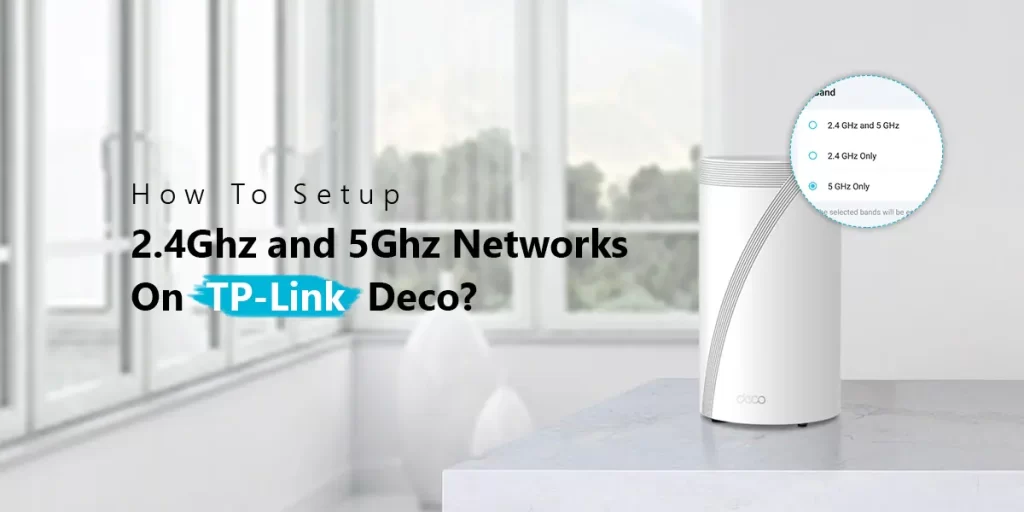
9. Change Wi-Fi Channel or Band Settings
Wireless interference can make a Deco network unstable. This is especially common in apartments or densely populated areas. Many nearby routers may be using overlapping wireless channels.
Depending on your Deco model and firmware, some Wi-Fi settings may be automatic and may not expose manual channel controls. Do not force a manual channel change unless your model supports it and you understand the setting. Also remember that a Wi-Fi problem is not always an internet problem.
If the internet works when you connect through Ethernet but Wi-Fi is unstable, focus on wireless coverage and interference.
10. Check Whether Only One Device Is Affected
Before blaming the Deco, test several devices.
Suppose:
- Phone works
- Laptop works
- TV works
- One old laptop does not
The Deco may be working normally. The issue could be with that device.
Try:
- Forgetting and reconnecting to Wi-Fi
- Restarting the device
- Updating its network driver
- Testing another network
This is a useful distinction. Deco no internet access on every device is different from one device cannot access the internet.
11. Factory Reset the Deco as a Last Resort
A factory reset should not be your first step. It removes your current configuration and means you may need to set up the network again. Before resetting, make sure you have the information you need.
For example:
- ISP username
- PPPoE password
- Static IP details
- Wi-Fi name
- Wi-Fi password
- Any special ISP settings
If simpler troubleshooting did not work, a factory reset may help clear a corrupted configuration.
See our internal guide: [How to reset or reboot Deco]
Important: Resetting one unit and resetting the entire mesh are not the same thing. Follow the procedure recommended for your specific Deco model.
12. Contact TP-Link or Your ISP
If the problem remains after these steps, determine who needs to help.
Contact your ISP if:
- Direct internet access also fails
- The modem shows a service problem
- Your PPPoE credentials do not work
- Your ISP connection is unstable
Contact TP-Link support if:
- The ISP connection works normally
- The Deco still cannot connect
- The Deco repeatedly goes offline
- The hardware appears defective
- Firmware or configuration problems continue
Before contacting support, collect:
- Deco model
- Firmware version
- ISP name
- Connection type
- Error message
- Deco light status
- When the problem started
- Whether all or one Deco units are affected
This can make troubleshooting much faster.
What is the meaning of different Deco Lights
The exact light behavior can vary by Deco model. Still, the light is a useful first clue.
| Light/status | What it may indicate | What to check |
| Normal/online status | Deco is operating normally | Test internet |
| Red | Connection or system problem | Check modem, cable and app |
| Yellow/orange | Startup or connection state on some models | Wait, then check status |
| Blinking | Startup, pairing, reset or another active state | Check app/model instructions |
| No light | Power or LED setting issue | Check power |
What does a red light on Deco mean?
A red light generally means the Deco has detected a problem, but the precise meaning depends on the model and situation. If the red light appears on the main Deco, check the modem, Ethernet connection, ISP and internet settings first. If only a satellite shows the problem, focus on the connection between the Deco units.
See our related guide: [Deco blinking red light]
You can also read: [What does the Deco orange light mean?]
How to Prevent Deco From Losing Internet Connection Again
Fixing the current problem is only half the job. You also want to lessen the chance of it happening again.
Keep firmware updated
Firmware can include fixes for stability and compatibility. Check the Deco app periodically.
Keep the Deco units ventilated
Do not place them inside cramped cabinets or directly beside heat-producing equipment.
Use good Ethernet cables
A spoiled or poor-quality cable can generate intermittent connection problems.
Avoid unnecessary configuration changes
Do not change advanced network settings just because they are available. A working DHCP setup does not need to be changed to Static IP without a specific reason.
Place nodes correctly
A satellite should have a strong enough connection to the rest of the mesh. More Deco units do not automatically mean better performance. Sometimes fewer, better-positioned units work better.
Monitor repeated disconnections
If your Deco keeps going offline at the same time every day, look for a pattern.
For example:
ISP maintenance
- Power interruptions
- Scheduled device activity
- Firmware problems
- Wireless interference
- Overheating
Repeated failures are more useful when you know when they happen.
Quick Troubleshooting Checklist
Use this checklist when your Deco can’t connect to the internet:
| Step | Check | Status |
| 1 | Check modem/ONT status | Check |
| 2 | Check Ethernet cable | Check |
| 3 | Restart modem | Check |
| 4 | Restart main Deco | Check |
| 5 | Check ISP outage | Check |
| 6 | Check Deco app | Check |
| 7 | Confirm DHCP/PPPoE/Static setup | Check |
| 8 | Check firmware | Check |
| 9 | Test each Deco node | Check |
| 10 | Improve node placement | Check |
| 11 | Test another device | Check |
| 12 | Factory reset only if needed | Check |
Frequently Asked Questions
Why does my Deco say “no internet access” but Wi-Fi still works?
Your device can connect to the Deco Wi-Fi network even when the Deco cannot reach the internet. Wi-Fi and internet access are different. Check the modem, WAN cable, ISP connection and Deco internet settings.
Is it normal for Deco to lose internet after a firmware update?
A temporary interruption can happen while firmware is being installed or the Deco restarts. However, it should reconnect after the update finishes. Do not unplug the Deco during an active firmware update.
How long should I wait after restarting Deco before it reconnects?
Give the modem and Deco several minutes to fully restart. Turn on the modem first and wait for its internet connection. Then start the main Deco and allow the mesh to reconnect before troubleshooting further.
Why is my Deco connected to Wi-Fi but not the internet?
Your device may have a connection to the Deco but the Deco may not have a working WAN connection. Check the modem, Ethernet cable, ISP service and internet connection type.
Why does my Deco keep going offline?
A Deco can repeatedly go offline because of weak mesh backhaul, interference, Ethernet problems, power interruptions, firmware issues or an unstable internet connection. Check whether the main Deco or only one satellite is affected.
Can a bad Ethernet cable cause Deco to lose internet?
Yes. A damaged or poorly connected Ethernet cable can interrupt the connection between the modem and main Deco. Reseat the cable and test another cable if possible.
Should I reset my Deco if it has no internet?
Not immediately. First check the ISP, modem, cable, internet settings and Deco app. A factory reset should normally be treated as a last resort because it removes your current configuration.
Final Thoughts
When your Deco is not connecting to the internet, do not assume that the Deco itself is broken. If the main Deco works but one satellite is offline, focus on that specific node instead of resetting the entire system. The most significant thing is to troubleshoot one step at a time. In many cases, a simple modem restart, cable replacement, correct PPPoE/DHCP configuration or better Deco placement can restore the connection.
If the problem keeps recurring, look for a pattern. A recurring issue can point to an ISP problem, wireless interference, firmware problem, faulty cable or hardware issue. And remember: a Deco that provides Wi-Fi is not necessarily providing internet. Your device can remain connected to the Wi-Fi network while the Deco has lost its connection to the ISP. That distinction makes diagnosing Deco no internet access much easier.
If you are still having trouble, start with the main Deco, confirm that the ISP connection works and then move outward through the mesh one unit at a time.